
Cart 0



In the ever-evolving digital landscape, WordPress stands as an enduring champion, powering millions of websites worldwide. Its user-friendly interface, robust features, and versatility have made it the go-to platform for bloggers, businesses, and organizations. However, to harness the full potential of WordPress, one must delve into the intricate world of WordPress User Roles. Also, aims to unravel the mysteries of these roles, shedding light on how they work, why they matter, and how you can use them to your advantage.
A. WordPress User Roles: An Overview
Before we delve deeper, let’s get acquainted with the fundamental concept of WordPress User Roles. Also at its core, WordPress User Roles define the level of access and permissions granted to individuals within your WordPress site. Besides roles are the foundation of your website’s security and organization, ensuring that each user can perform tasks commensurate with their responsibilities.
The Key WordPress User Roles
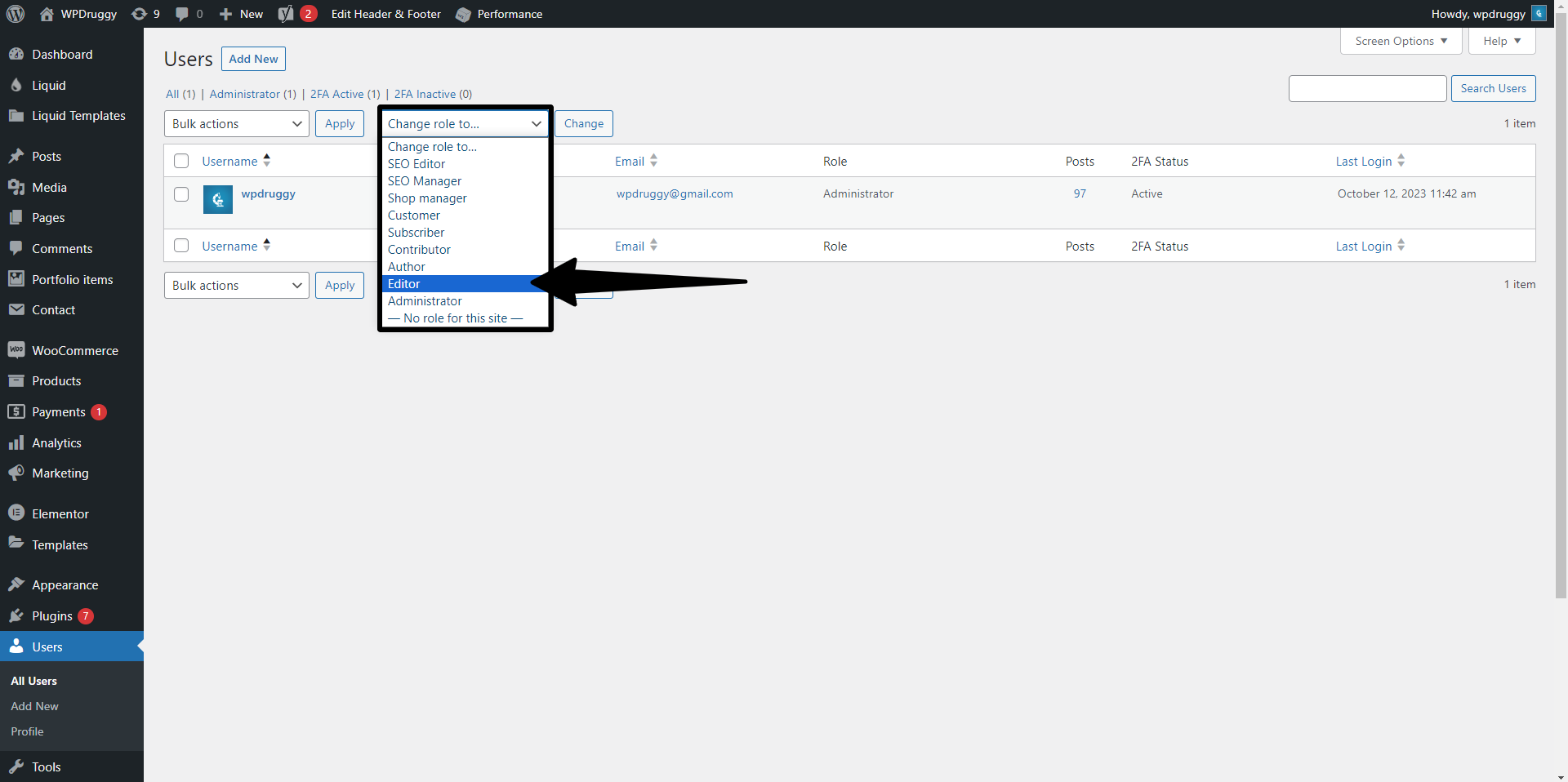
1. Administrator
The ultimate powerhouse. Administrators have complete control over the website, from content creation to theme customization and user management. There should be a limited number of administrators to maintain site security effectively.
2. Editor
Editors have the authority to create, edit, publish, and delete posts, but they cannot modify website settings. Besides role is ideal for content managers and editors.
3. Author
Authors can create and publish their own posts but have no access to posts created by others. As well as role suits individual bloggers and content creators.
4. Contributor
Contributors can write and edit their own posts, but they need an editor’s approval to publish them. Additionally, the role is perfect for guest bloggers or those who submit content for review.
5. Subscriber
Subscribers can manage their user profile and leave comments, but they can’t create or edit content. Also, the role is usually for your site’s regular readers and commenters.
B. Understanding the Significance
Now that we’re familiar with the primary roles let’s explore why understanding and using WordPress User Roles is crucial. These roles are pivotal for several reasons:
Enhanced Security
By assigning the right roles to the right individuals, you ensure that sensitive aspects of your site, such as settings and plugins, remain untouched by unauthorized users. Administrators can manage the backend, while content creators focus on what they do best.
Streamlined Workflow
When you have a team working on your website, assigning roles based on responsibilities creates a well-organized workflow. Also, editors can focus on content quality, authors on writing, and contributors on ideas, all without interfering with each other’s tasks.
Reduced Human Error
With role-based access, there’s less room for accidents. Content creators won’t accidentally tamper with site settings, keeping the site’s integrity intact.
Efficient Collaboration
When different individuals have distinct roles, it’s easier to collaborate. Besides editors can review and enhance articles before they go live, maintaining the site’s content quality.
C. Utilizing WordPress User Roles
Moreover, let’s discuss how you can make the most of these roles for your WordPress website:
Setting the Right Roles
First and foremost, assign roles according to the responsibilities of your team members. However, keep the number of administrators minimal to reduce security risks.
Regular Review
Periodically review the user roles and permissions. In addition your website grows, you might need to adjust roles to accommodate changes in your team’s structure or responsibilities.
Training and Guidelines
Ensure that all team members understand their roles and responsibilities. As well as provide guidelines to prevent misuse and maintain a smooth workflow.
Plugins for Advanced Roles
In case you need more specific roles or additional functionalities, consider using plugins that extend the capabilities of WordPress User Roles.
D. Transitioning to Action
Understanding WordPress User Roles is the first step; now, it’s time to put this knowledge into action. Additionally tailoring user roles to your website’s unique needs can greatly enhance your WordPress experience, improving security, workflow, and collaboration. Remember, WordPress User Roles are not a one-size-fits-all solution; they are tools you can customize to fit your specific requirements.
Advanced User Role Customization
WordPress User Roles are not set in stone. Besides, with a little customization, you can fine-tune the roles to match your specific needs. However, there are some advanced customization tips:
Custom Roles
If the default roles don’t quite fit your requirements, consider creating custom roles. This can be done using plugins like “Members” or by writing custom code. Custom roles give you precise control over user capabilities.
Role Editor
Plugins like “User Role Editor” allow you to modify existing roles or create new ones. You can grant or restrict access to various parts of your site, including custom post types and specific plugins.
Content Restrictions
You can restrict access to certain content or pages based on user roles. For example, if you have premium content for subscribers, restrict access to it and create a new revenue stream.
Implementing Role-Based Plugins
WordPress boasts a vast repository of plugins that can supercharge the capabilities of user roles. Here are some must-consider plugins:
User Role Editor
As mentioned earlier, this plugin empowers you to tweak and fine-tune user roles to your exact requirements. You can add or remove capabilities as needed.
Members
This plugin offers a user-friendly interface for creating and editing user roles. It simplifies the process of managing and customizing roles on your WordPress site.
Role Scoper
Role Scoper provides advanced content permission control. You can restrict access to posts, pages, and custom content types with precision, making it a great tool for content-focused websites.
E. Role-Based Workflow
When it comes to workflow and collaboration, here are some strategies to ensure efficient and harmonious operation:
Editorial Calendar
Utilize editorial calendar plugins to schedule content publication. Editors can review and set publication dates, streamlining your content creation process.
Collaboration Tools
Invest in project management and collaboration tools to keep your team in sync. Tools like Trello, Asana, or Slack can facilitate communication and project management.
Regular Training
Conduct training sessions for your team members. Ensure they are well-versed in their roles and responsibilities, keeping potential errors to a minimum.
F. Child Themes and Customization
WordPress User Roles extend to the visual aspect of your website. If you’re looking to customize your site’s design, consider creating a child theme. A child theme inherits the parent theme’s functionality and style, allowing you to make design modifications without affecting the original theme. Admins and developers will have this ability, so assign user roles accordingly.
User Role Plugins for E-commerce
If your website includes an online store, WooCommerce is likely your go-to plugin. WooCommerce has its own set of user roles, such as “Shop Manager” and “Customer.” Ensure these roles are appropriately assigned to manage your online store effectively.
User Role-Based Content Creation
Creating a collaborative and efficient content creation process is essential for websites with multiple contributors. Here’s how you can organize your content creation based on user roles:
Editorial Guidelines
Develop clear editorial guidelines for your content creators. Editors, in particular, should have a well-defined set of criteria for reviewing and approving content.
Content Calendar
Implement a content calendar that editors and authors can collaborate on. This helps in planning content, assigning topics, and ensuring a consistent publishing schedule.
Editorial Workflow
Define a clear workflow that outlines the stages a piece of content goes through, from creation to publication. This ensures that the responsibilities of each user role are clearly defined.
Feedback and Revisions
Editors can provide feedback and request revisions using comments and notes. Authors and contributors can collaborate more effectively by understanding the required changes.
User Role Permissions
Managing user role permissions is a critical aspect of WordPress site management. You can control what each user role can or cannot do using plugins like “User Role Editor.” However, it’s essential to strike a balance between flexibility and security. Granting too many permissions can lead to security risks while being overly restrictive can hinder productivity.
G. Role-Based Personalization
Personalizing the user experience based on roles can enhance your website’s functionality. For example:
Dashboard Customization
You can customize the WordPress dashboard for each user role. So administrators may have access to analytics and site settings, while authors may have quick access to their drafts.
Content Suggestions
Display content suggestions relevant to the user’s role. For instance, contributors could receive prompts for topics they can write about, while editors could see content requiring their attention.
H. User Role Performance Metrics
To ensure that user roles are effectively utilized, consider implementing performance metrics and KPIs for each role. For instance:
Author Productivity
Measure the number of articles authored, word count, and reader engagement for authors. So, this can help identify high-performing writers.
Editorial Efficiency
Track how efficiently the editorial team reviews and approves content. Are there any bottlenecks or delays in the workflow?
Content Engagement
Analyze how subscribers engage with the content. Similarly, this data can inform your content strategy and help tailor content to your audience.
Also Read More Articles
- Deep Dive Into WordPress Taxonomies
- Add Custom Fonts to WordPress Site
- Use WordPress for Sports Teams and Leagues
- Web Accessibility Standard
- Create a Real Estate Website with WordPress
- How to Manage Ads in WordPress
- Understanding WordPress Trackbacks and Pingback
- Making WordPress Custom Templates
The Final Thought
WordPress User Roles are the backbone of efficient website management. They facilitate teamwork, enhance security, and optimize the user experience. By understanding the roles, customizing them to your needs, and implementing role-based strategies, you can unlock the full potential of your WordPress site.
In the ever-evolving digital landscape, mastering WordPress user roles is the key to staying ahead. Your website will not only run smoothly but will also be better equipped to meet the diverse needs of your team and audience. As well as harness the power of WordPress User Roles, and watch your website flourish.
FAQs
What are WordPress user roles?
WordPress user roles are predefined sets of permissions that determine what actions a user can perform within a WordPress website. Each user role has its own level of access and capabilities.
What are the different user roles in WordPress?
WordPress has several built-in user roles, including:
- Administrator: The highest level of access, with full control over every aspect of the site.
- Author: Authors can create and publish their own posts but have no access to posts created by others.
- Editor: Editors have the authority to create, edit, publish, and delete posts, but they cannot edit website settings.
- Contributor: Can write and submit posts for review but cannot publish them.
- Subscriber: Can only manage their user profile and leave comments.
How can I change a user’s role in WordPress?
To change a user’s role, you can go to the “Users” section in your WordPress dashboard, locate the user, and edit their profile. From there, you can assign them a new role from the dropdown menu.
Can I create custom user roles in WordPress?
Yes, it is possible to create custom user roles in WordPress using plugins or custom code snippets. With plugins like “User Role Editor,” you can define new roles with specific capabilities and assign them to users.
Can user roles be modified for specific plugins?
Yes, some plugins provide additional user roles or allow you to customize role capabilities for their specific features. This allows you to control plugin settings and permissions on a more granular level.

