
Cart 0



A user recently asked us whether there was a method to fix the issue ‘your PHP installation looks to be lacking the MySQL extension which is required by WordPress’. When this issue occurs, users stop visiting your website. If this happens frequently, it might have a negative impact on the user experience of your website. Demonstrate how to fix the PHP missing MySQL extension problem in WordPress.
What Is the PHP Missing MySQL Extension Error?
When working on a WordPress website or accessing a web page, you may see the problem ‘your PHP installation appears to be missing the MySQL extension which is required by WordPress’. This problem usually indicates that something went wrong with your site’s coding, preventing WordPress from connecting to the MySQL database.
The PHP missing MySQL extension problem typically happens when you update or install WordPress, migrate a website, change server configurations, or switch to an operating system that does not include a MySQL extension (such as Linux). That said, let’s look at the sources of this problem.
What Causes the PHP Missing MySQL Extension Error?
There are many causes why a PHP missing MySQL extension error can develop. One of them is that you are using an outdated version of WordPress with the most recent PHP version. If you are using PHP 7.0 or higher, you should be aware that the MySQL extension was deprecated.
So, if you’re using an older version of WordPress with PHP 7.0 or higher, it won’t discover the MySQL extension, resulting in this error. Another reason you may encounter this issue is that the MySQL extension is either missing or incorrectly set. Even if you’re running PHP 5.6 or lower, the PHP missing MySQL extension issue could be caused by an out-of-date MySQL extension.
Now, let’s look at some of the solutions for the ‘your PHP installation looks to be lacking the MySQL extension, which is required by WordPress’ error. You can use the links below to check out any of the tips you like.
Fixing the PHP Missing MySQL Extension Error in WordPress
Now that you know what’s creating this WordPress problem, here are a few solutions.
1. Check The PHP Version You Are Using
The first thing you should do is check the PHP version of your website. A difference between WordPress and PHP versions generally causes the PHP missing MySQL extension error.
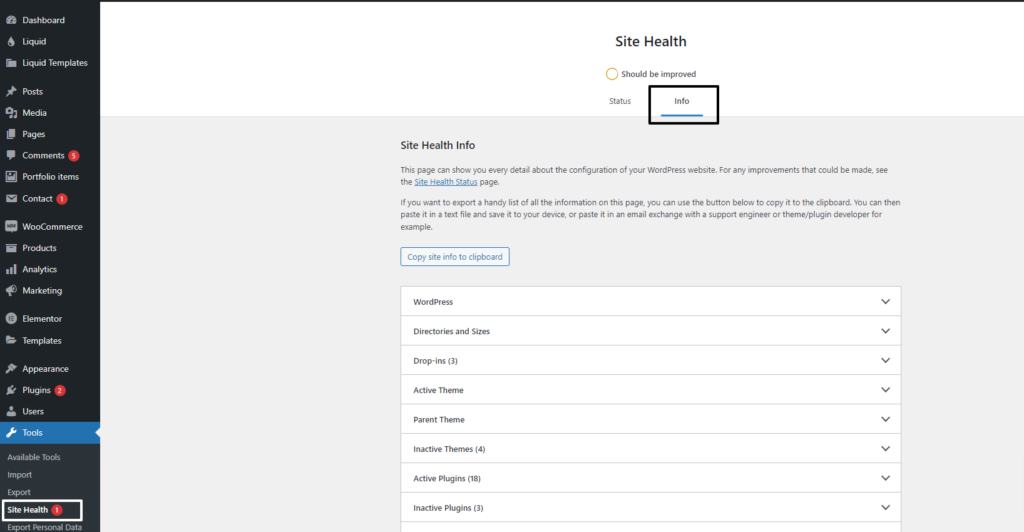
To begin, navigate to the Tools » Site Health page within the WordPress dashboard. From here, simply select the ‘Info‘ tab.
Next, scroll down to the ‘Server‘ area and click to expand it. This is where you’ll find the server information for your website. Go ahead and check the PHP version in the details.
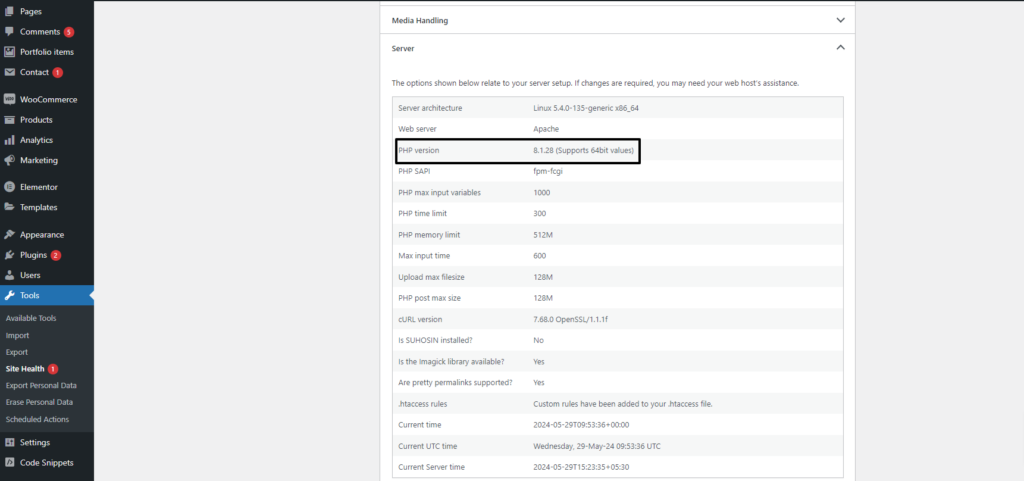
If your site’s PHP version begins with 7 or lower, you will need to update it. This can solve the PHP missing MySQL extension error because it is compatible with the most recent WordPress version.
We strongly advocate using PHP 8.0 or the most recent version to protect your site from security concerns. It will help improve the efficiency of your website and address any security flaws or issues.
2. Update WordPress to the Latest Version
After examining the PHP version, you can identify which WordPress version you are using.
If it’s an older version and you’re using the most recent PHP version, consider updating WordPress to fix the PHP missing MySQL extension problem.
A quick approach to check the WordPress version is to navigate to Dashboard » Updates in the WordPress admin panel. Look for the ‘Current version‘ information.
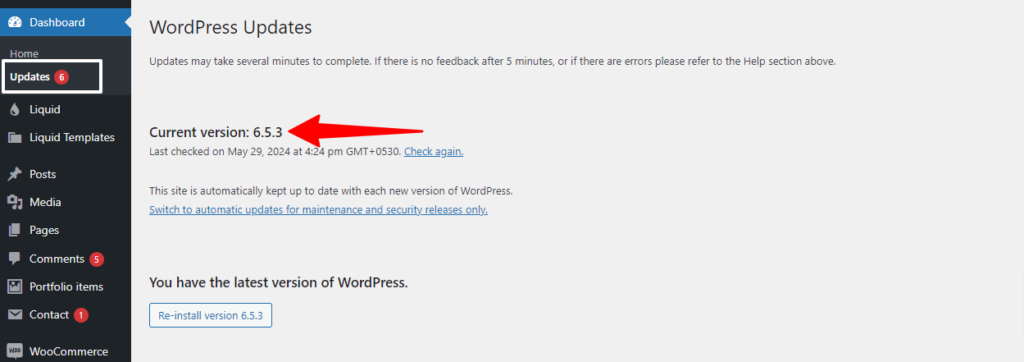
If your WordPress version is 3.9 or lower, we recommend updating it to resolve the missing MySQL extension problem. The nicest thing is that WordPress includes an update manager. You can easily update to the most recent version by clicking a button.
3. Ensure You Have MySQL Extension Installed
If you have upgraded the PHP version and WordPress on your website and are still seeing the ‘PHP missing MySQL extension’ issue, you should ensure that the MySQL extension is properly installed on your site.
You may accomplish this by navigating to the Tools » Site Health page in the WordPress dashboard. Next, navigate to the ‘Info‘ tab.
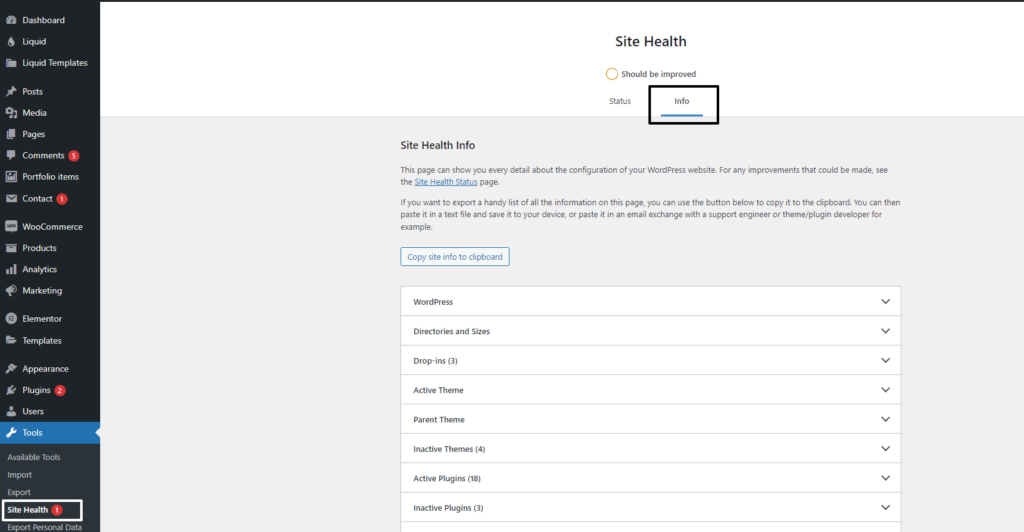
After that, head to the ‘Database’ section and click to expand it. In the Extension field, look for MySQL or MySQL.

If the column is blank or not visible at all, it indicates that you are lacking the MySQL extension.
The extension’s installation process now depends on your WordPress hosting provider. You can just contact them for assistance or ask the support team to install it for you.
4. Check Your PHP Configuration
Another solution to the PHP missing MySQL extension error is to verify your site’s PHP settings. Sometimes you upload the wrong php.ini file or use the incorrect file path. This leads to PHP configuration difficulties and missing MySQL extension errors.
The php.ini file is PHP’s default configuration file that affects how your site works. When you use a different operating system, you are more likely to upload an inaccurate file. For example, you could be uploading a php.ini file intended for Windows to a Linux server. To find the path of your php.ini file in the phpinfo.php file, type the following web URL into your browser:
www.wpdgruggy.com/phpinfo.phpJust make sure to replace www.example.com with your domain name. Next, you will see details of your PHP installation. From here, scroll down to find the ‘Configuration File Path’ or ‘Loaded Configuration File’ fields.
Once you’ve located the php.ini file, connect to an FTP client, navigate to the file path, and delete it to see if the PHP missing MySQL extension error is fixed. Before deleting, we recommend establishing a backup of the existing file by downloading it onto your computer. In this manner, if something goes wrong, you may restore the php.ini file and access your website.
Also, Read More Articles
- How to Add a Custom Database Error Page in WordPress
- Top 9 Reasons WordPress Websites Get Hacked: How to Stay Safe
- How to Create Custom RSS Feed in WordPress
- How to Allow Users to Post Anonymous Comments on WordPress
- How to Add Ads Within Your Post Content in WordPress
- How to Fix WordPress Keeps Logging Out Problem
- What is an SEO Friendly URL Structure in WordPress
- How to Display Related Posts by the Same Author in WordPress
- How to Ask Google to Recrawl URLs of Your WordPress Site
- How to Easily Add JavaScript in WordPress Pages or Posts – 2 Methods
The Last Thought
In conclusion, fixing the “PHP Missing MySQL Extension” error in WordPress is important for ensuring that your website functions properly and continuously. This issue can be efficiently solved by verifying your PHP version, installing the correct MySQL extension, and ensuring proper server settings. Keeping your PHP and WordPress versions up to date not only helps to avoid mistakes but also improves security and speed. Regular maintenance and timely upgrades are vital for a strong and dependable WordPress site.

