
Cart 0



Do you want to display related posts by the same author in WordPress? Many websites include related postings after each post. If you run a multi-author WordPress website, users may want to view other works by the same author. This article will show how to display related posts by the same author in WordPress.
Why Display Related Posts by Author in WordPress?
By including related posts in WordPress, you can help readers discover new material, stay engaged, and increase pageviews while decreasing the bounce rate.
However, if you have a multi-author WordPress blog, visitors may desire to read more content by a certain author. If you display content authored by the same author, you can keep people on your site for longer and improve their reading experience.
Displaying Posts by the Same Author in WordPress (Easy Method)
The quickest way to display a list of related posts by the same author is to include custom code on your WordPress site. We tried to discover plugins for this purpose, but the ones we identified needed to be updated. Some guidelines will instruct you to add custom code by altering your site’s functions.php file.
However, we do not suggest this strategy because even a minor error or typo in the code can result in frequent WordPress errors or ruin your site. That’s where WordPress Code comes in. WPCode is the greatest code snippets plugin for WordPress, allowing you to safely add custom PHP, CSS, HTML, and more to your website.
You can also update your WordPress theme without losing any customizations. First, you need to install and activate the free WPCode plugin.
Once activated, click Code Snippets » + Add Snippet.

Here you can find all of the ready-made snippets that may be added to your website. These include a snippet that lets you completely disable comments, upload file types that WordPress does not normally accept, disable attachment pages, and more.
To create a snippet, mouse over ‘Add Your Custom Code‘ and then click ‘Use snippet‘.

This will take you to the ‘Create Custom Snippet‘ page, where you can start by typing a name for your code snippet. This is for reference, so you can use whatever you wish.
Next, open the ‘Code Type‘ menu and pick ‘PHP Snippet‘.
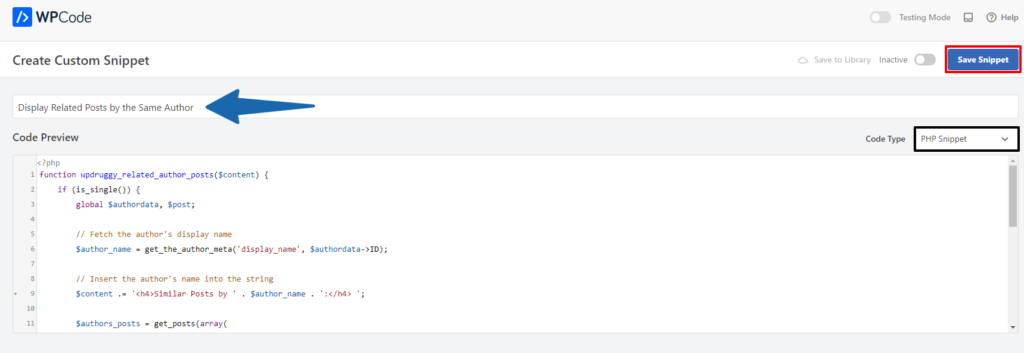
You can now copy and paste the following snippet into the code editor.
function wpdruggy_related_author_posts($content) {
    if (is_single()) {
        global $authordata, $post;

        // Fetch the author's display name
        $author_name = get_the_author_meta('display_name', $authordata->ID);

        // Insert the author's name into the string
        $content .= '<h4>Similar Posts by ' . $author_name . ':</h4> ';

        $authors_posts = get_posts(array(
            'author' => $authordata->ID,
            'post__not_in' => array($post->ID),
            'posts_per_page' => 5
        ));

        $content .= '<ul>';
        foreach ($authors_posts as $authors_post) {
            $content .= '<li><a href="' . get_permalink($authors_post->ID) . '">' . apply_filters('the_title', $authors_post->post_title, $authors_post->ID) . '</a></li>';
        }
        $content .= '</ul>';

        return $content;
    } else {
        return $content;
    }
}

add_filter('the_content', 'wpdruggy_related_author_posts');
This code will check whether the page contains a single post and, if so, get the author’s details. It will then display a heading that states ‘Similar posts by (author name)’.
Below the post text are up to five comparable posts (except the current one) by the same author. The function also instructs WordPress to execute the code on single-post templates.
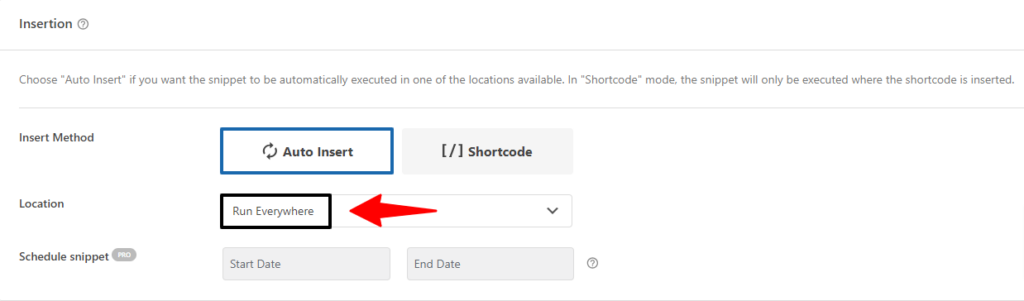
Next, scroll down to the ‘Insertion‘ section.
If it is not already chosen, select ‘Auto Insert.’ Then, enter the dropdown menu and select ‘Run Everywhere’ to have the linked content appear throughout your WordPress website.
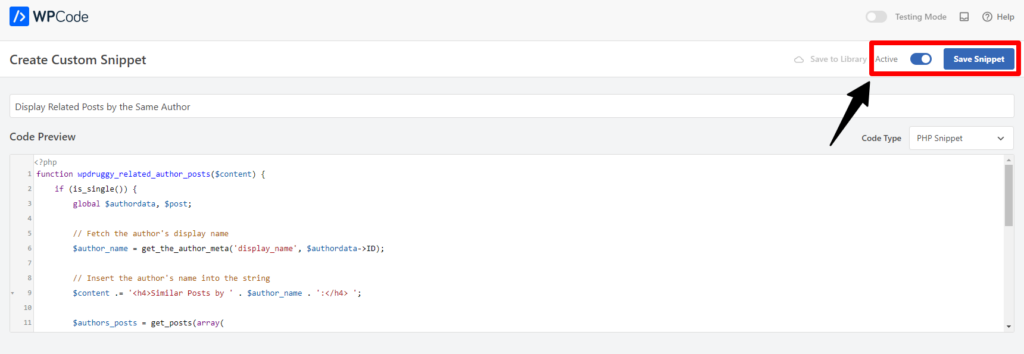
After that, navigate to the top of the screen and select the ‘Inactive‘ toggle to switch it to ‘Active‘.
Finally, click ‘Save Snippet‘ to make the PHP snippet available.
Also, Read More Articles
- How to Ask Google to Recrawl URLs of Your WordPress Site
- How to Easily Add JavaScript in WordPress Pages or Posts – 2 Methods
- How to Use User-Generated Content in WordPress to Grow Your Business
- How to Disable Theme and Plugin Editors from the WordPress Admin Panel
- How to Fix ‘Failed To Load Resource’ Error in WordPress
- How To Fix “The Link You Followed Has Expired” Error in WordPress
- How to Fix WordPress RSS Feed Errors (Step-by-Step Guide)
- How to Fix Post-Processing of Image Failed Error in WordPress
- How to Block WordPress Referrer Spam in Google Analytics
- How to Fix WordPress SEO Crawl Budget Problem
The Final Concluison
In conclusion, implementing a feature to display related posts by the same author in WordPress can significantly enhance user engagement and offer visitors more content tailored to their interests. By using plugins or custom code, you can seamlessly integrate this functionality into your website, providing a cohesive browsing experience while promoting the work of individual authors.
With careful configuration and testing, you can make sure that related posts accurately reflect the author’s style and expertise, ultimately fostering deeper connections with your audience and encouraging further exploration of your content.

