
Cart 0



Do you want to block WordPress referral spam in Google Analytics? Referrer spam sends fraudulent data to your website, stuffing your analytics reports with spam links. In this article, we’ll show you how to successfully block WordPress referrer spam using Google Analytics.
What Is WordPress Referrer Spam, and How Does It Affect Google Analytics?
Referrer spam is a common spamming strategy in WordPress that involves sending fake traffic data to a WordPress website. This spam strategy attempts to corrupt a website’s analytics data with spam URLs, keywords, and domain names.
This data affects your Google Analytics reports because it is displayed under Referral data and may have an impact on your website’s overall page views, bounce rates, and session data collection.

If you find a lot of suspicious-looking domains in your Referral statistics, they’re probably spam referrers. Blocking these spam referrals will improve your Google Analytics results and protect your data from spam queries. That being said, let’s look at how to simply block referrer spam in Google Analytics for a WordPress website.
WordPress Block Referrer Spam in Google Analytics with Sucuri
This is the simplest technique to block the most common referrer spam in Google Analytics. This will require Sucuri. It is the greatest WordPress security plugin and includes the best website firewall on the market.
It stops most typical website risks, including referral spam, before they reach your site. Sucuri also includes website monitoring, virus scanning, integrity checks, and hundreds of other security measures. This protects your website against hacking, malware, and brute-force attacks.
Filter Out WordPress Spam Referrer in Google Analytics
The first two methods listed above will limit referral traffic to your website. However, spammers may not always submit referral requests to your website. Instead, they would target your Google Analytics monitoring code and mislead it into registering a spam response.
These attempts will bypass your website’s filters and may still appear in your Google Analytics results. You may filter out ghost referral spam in your Google Analytics account.
Block WordPress Spam Referrer in GA4
If your website uses Google Analytics 4 (GA4), you can use the strategy below to delete unnecessary referrals. Simply log in to your Google Analytics account and select the Admin view.
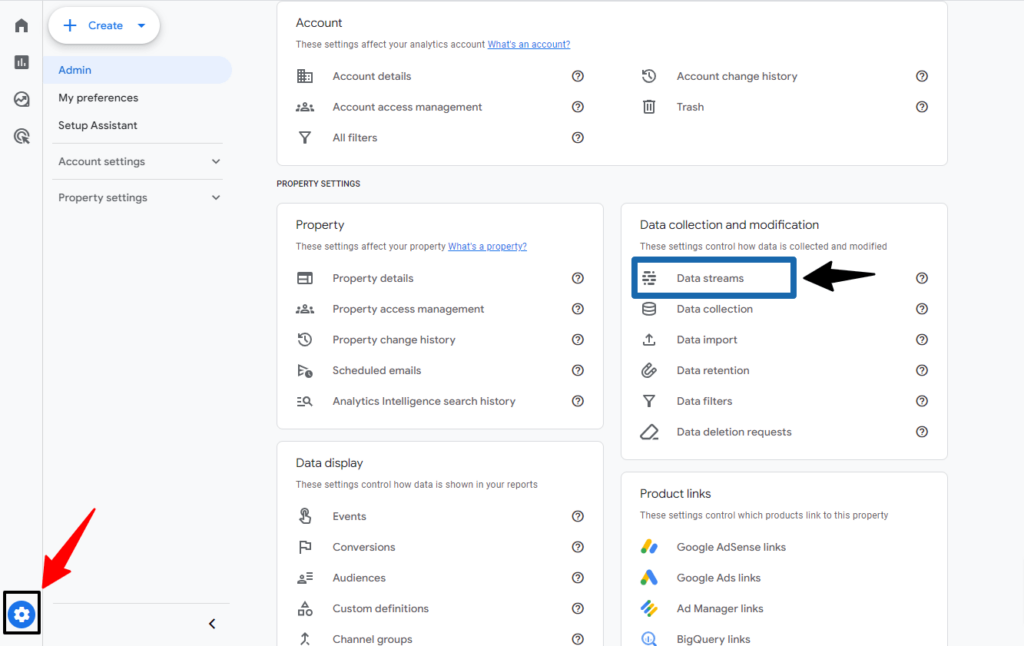
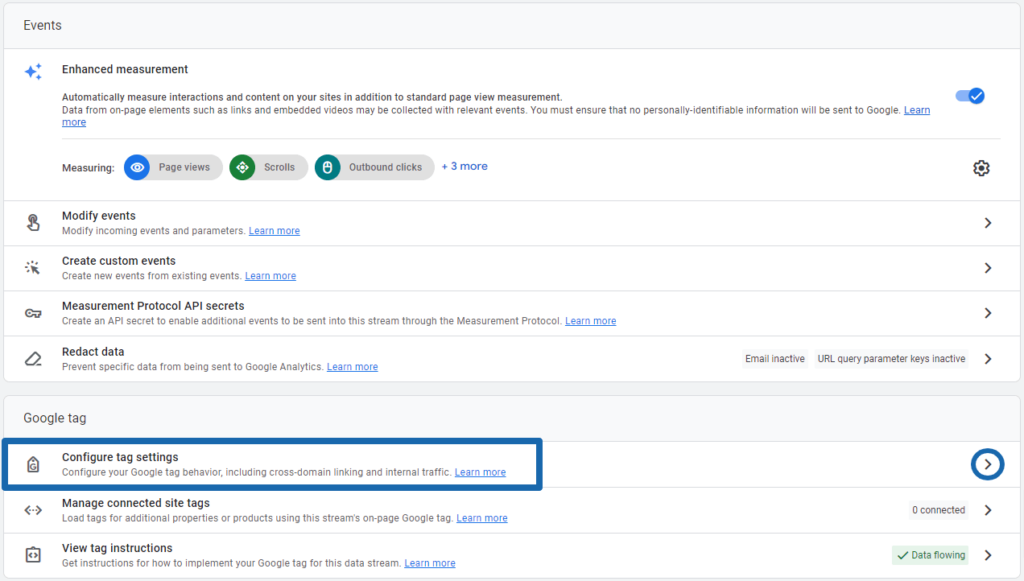
In the Property column, select the Data Streams option. This will connect the Data Streams to your Google Analytics property. After picking your data stream, you will see a variety of settings. Simply go down to the Advanced Settings area, then select the ‘Configure tag settings‘ tab.
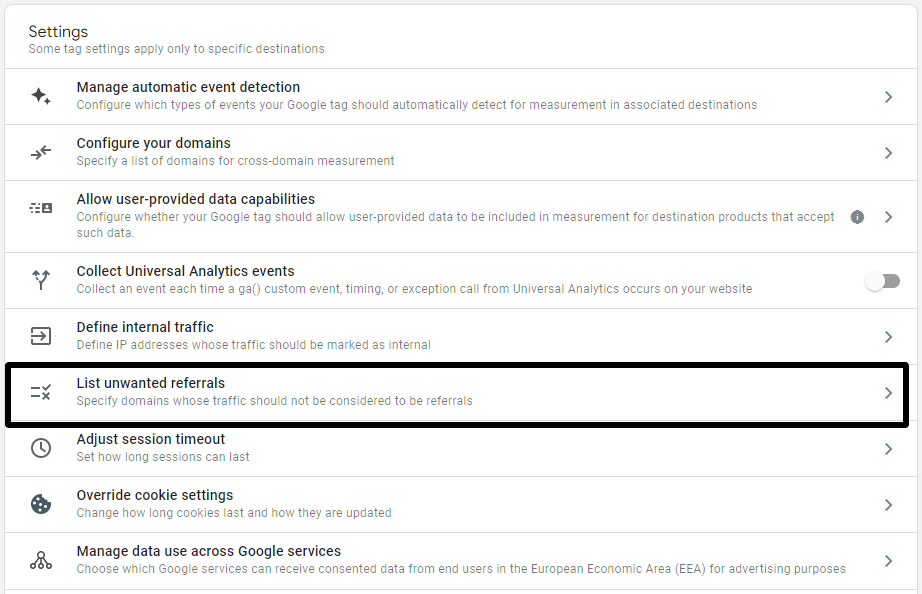
Next, click the ‘List Unwanted Referrals‘ option.
This will direct you to the configuration of the screen.
Under Match Type, select ‘Referral domain contains’ and then add the domain you wish to block next to it.
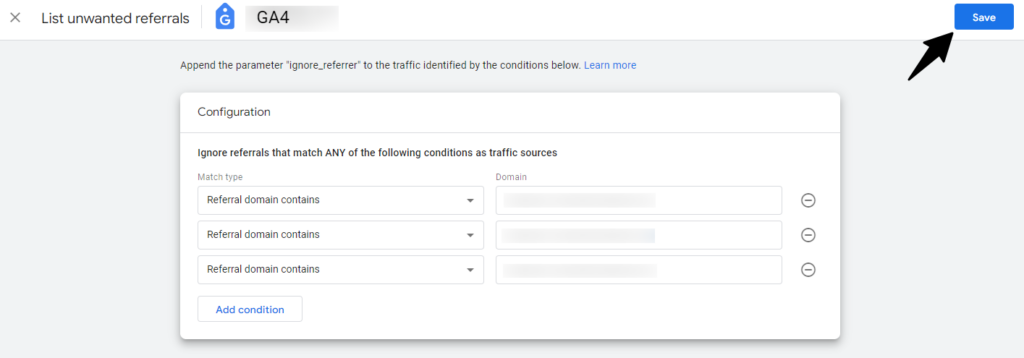
Click the Add condition button to add another domain if required.
Once finished, click the Save button in the top right of the screen to save your changes.
Google Analytics will now remove these referrals from your reports.
Block Invalid Referrers in Older Google Analytics
If you still have an old Google Analytics account that uses the Universal Analytics (UA) code, you can use this method. Simply navigate to the Admin tab of your Google Analytics account.
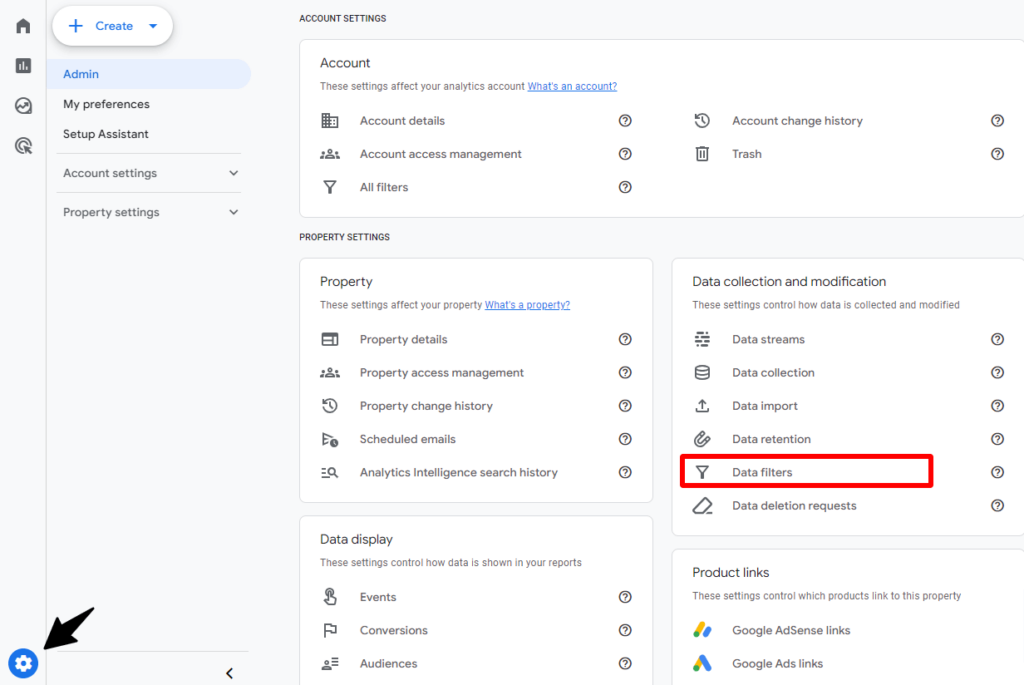
From here, you need to click on the Filters option under the ‘View’ column.
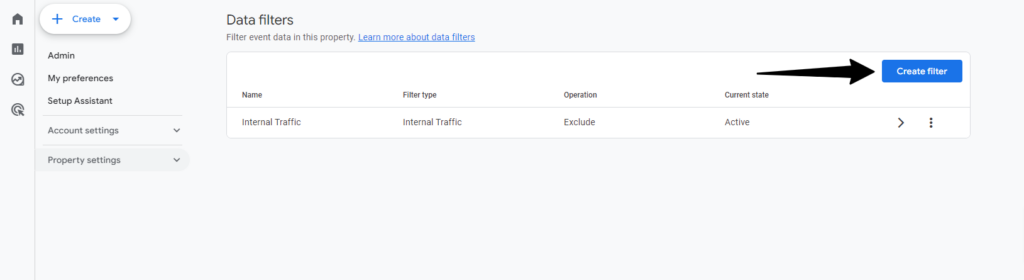
This will bring up the Filters screen. Go ahead and click on the Create Filter button.
On the following screen, you can customize your filter settings.
First, set the Filter Type to ‘Custom‘ and select the ‘Exclude‘ method.
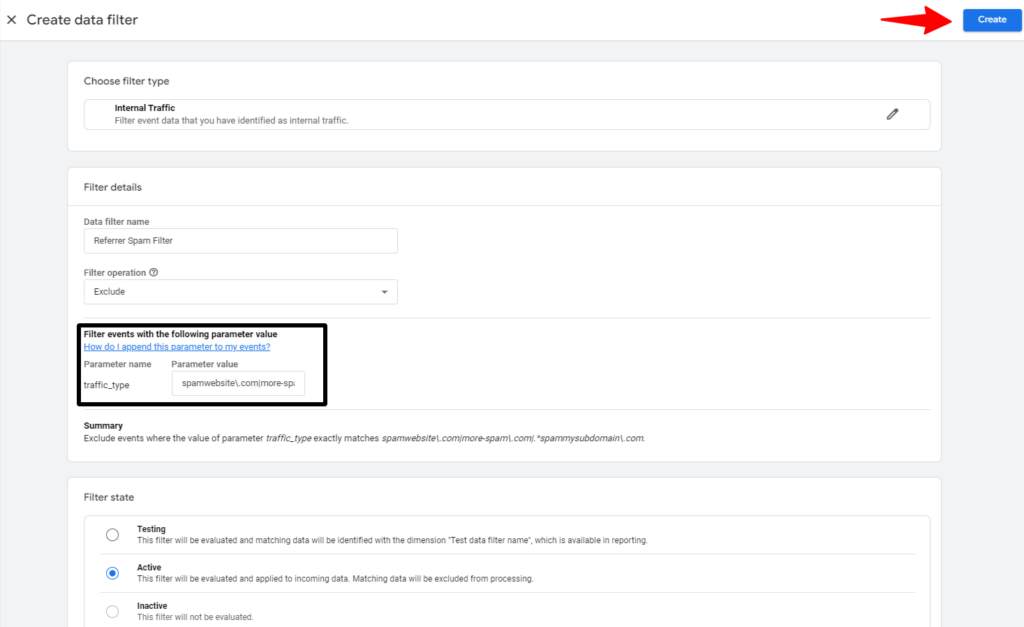
After that, click the ‘Filter Field‘ drop-down and select ‘Campaign Source‘ (this is where your filter will look for the match).
Finally, enter the domains you want to block in the Filter Pattern box using the following Regex expression style.
spamwebsite\.com|more-spam\.com|.*spammysubdomain\.comA backslash and a dot (.) divide the domain name and extension, whereas a pipe sign (|) separates each domain name.
The last domain on the list has a dot and an asterisk (.*) before its name. This star disables not only the domain name but also all of its subdomains.
Simply click the Save button to save your filter choices. Google Analytics will now delete the spam referrers from your reports.
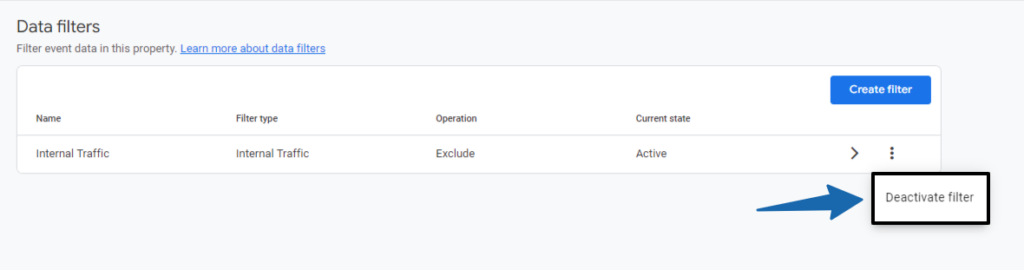
Filters do not affect how Google Analytics collects data on your website. They just change the reports you see in your Google Analytics dashboard. You may always return to the filters screen to change or Deactivate Filter.
Read More Relevant Articles
- How to Fix WordPress SEO Crawl Budget Problem
- How To Easily Disable the Default WordPress Sitemap
- How to Disable Overflow in WordPress – Remove Horizontal Scroll
- How to Disable WordPress Admin Email Verification Notice
- How to Delay Posts from Looking in the WordPress RSS Feed
- How to Enable Automatic Updates in WordPress for Major Versions
- How to Properly Disable Lazy Load in WordPress
- How to Easily Add Custom Code in WordPress
- 10+ Most Popular Digital Products Can Sell Online in 2024
- 10+ Best WordPress Themes for SEO Experts in 2024
The Bottom Line
In conclusion, effectively blocking WordPress referrer spam in Google Analytics is crucial for maintaining accurate and reliable data for your website. By implementing the recommended methods such as using filters, modifying your GA4, or using WordPress plugins specifically designed for this purpose, you can significantly reduce the impact of spammy referrers on your analytics reports.
Regular monitoring and updating of your defenses will help ensure a clean and trustworthy representation of your website’s performance. With these measures in place, you can make more informed decisions based on genuine user behavior, enhancing the overall effectiveness of your digital strategies.

