
Cart 0


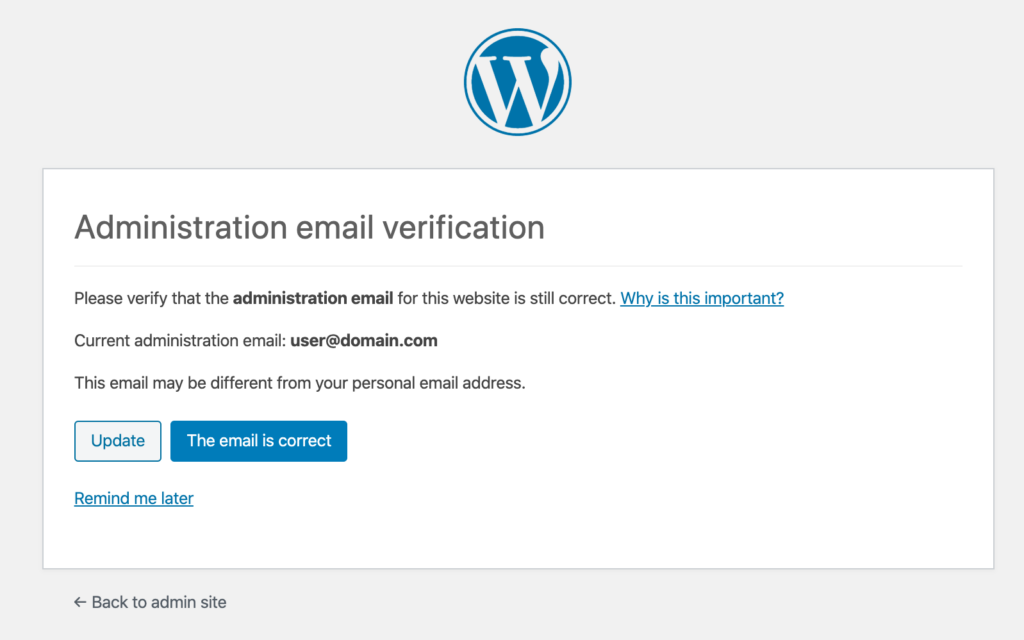
Do you want to disable the WordPress admin email verification notice? By default, WordPress delivers an admin email verification message to site administrators every few months to verify that the email address they use is still correct. It’s a fake security measure that many website owners believe is unnecessary and inconvenient. This article will show how to easily remove the admin email verification notice in WordPress.
What is an Admin Email Verification Notice in WordPress?
The admin email verification notice function was added in WordPress 5.3. The goal of this message is to display a screen to website operators every few months asking them to verify their site’s email address.
The admin email verification message guarantees that the administrator’s email address is correct and currently in use. This is because having a working email is critical for site security and maintenance.
Why disable the Admin Email Verification Notice?
While security is still essential there are valid explanations why website administrators may want to suppress the WordPress Admin Email Verification Notice this includes:
Streamlining Workflow
Email verification prompts can impair workflow productivity, particularly for administrators managing several websites or regularly updating settings.
Improved User Experience
Disabling the verification message on websites with numerous administrators or contributors helps save unnecessary procedures and disruptions.
Customization and Control
Disabling this option gives administrators more control over their WordPress environment, allowing them to customize the platform to their needs and tastes.
However, while the admin email verification message was supposed to appear every six months, it may appear more frequently than necessary.
This can be difficult for users who are simply trying to log in to their WordPress sites. Isn’t it nice if you could just turn off the admin email verification notice?
Let’s see how to disable the admin email verification notice effortlessly. Click the links below to get directly to the approach you want to use:
- Method 1: Disable Admin Email Verification Notice with Code (Recommended)
- Method 2: Use a Plugin to Disable the Admin Email Verification Notice.
Method 1: Disable Admin Email Verification Notice with Code (Recommended)
You may quickly remove the admin email verification notice by including a code snippet in your WordPress files. If you’ve never done this before, check out our beginners’ guide on pasting web snippets into WordPress.
In most cases, you’ll need to manually add the code to your theme’s functions.php. However, this can be difficult, and even the smallest error can bring down your entire website.
This is why we recommend WPCode. It is the greatest WordPress code snippets plugin on the market, making it simple and secure to add custom code to your site.
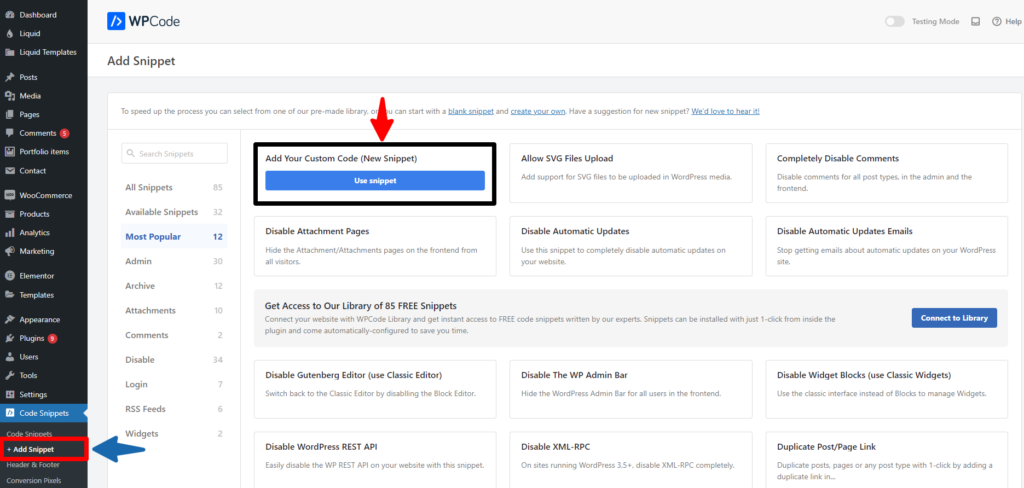
First, install and activate the free WPCode plugin. For additional information. Once activated, navigate to the Code Snippets » + Add Snippet page from your WordPress admin dashboard.
Here, click on the ‘Use Snippet’ button under the ‘Add Your Custom Code (New Snippet)’ option.
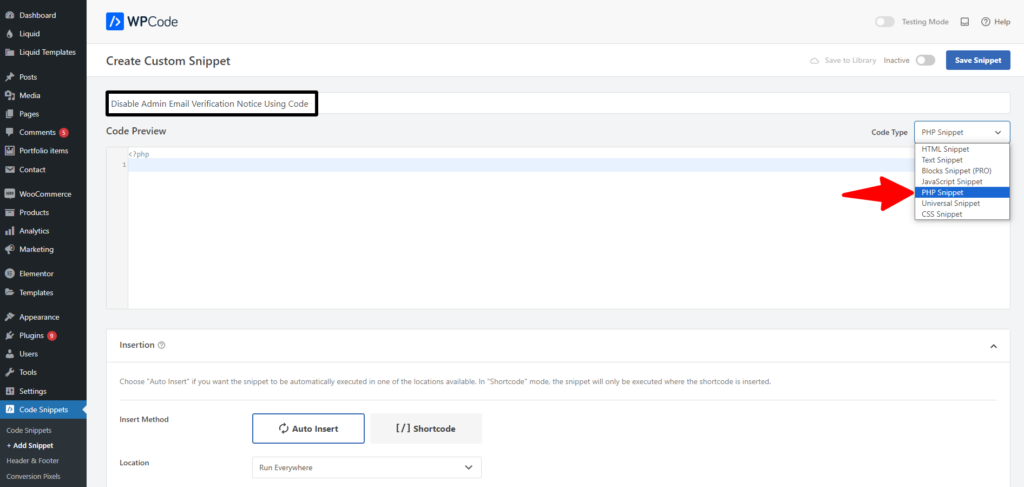
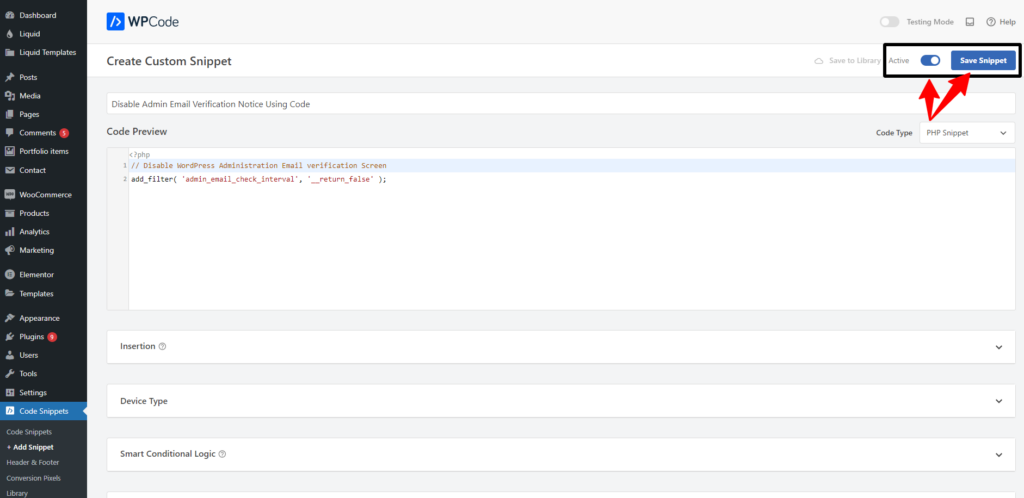
This will direct you to the ‘Create Custom Snippet’ page, where you can begin by providing a title for your code snippet. It could be anything that helps you figure out the code.
Next, choose ‘PHP Snippet’ as the ‘Code Type’ from the dropdown option on the right.
After that, simply copy and paste the following PHP code snippet into the ‘Code Preview‘ box:
// Disable WordPress Administration Email verification Screen
add_filter( 'admin_email_check_interval', '__return_false' );
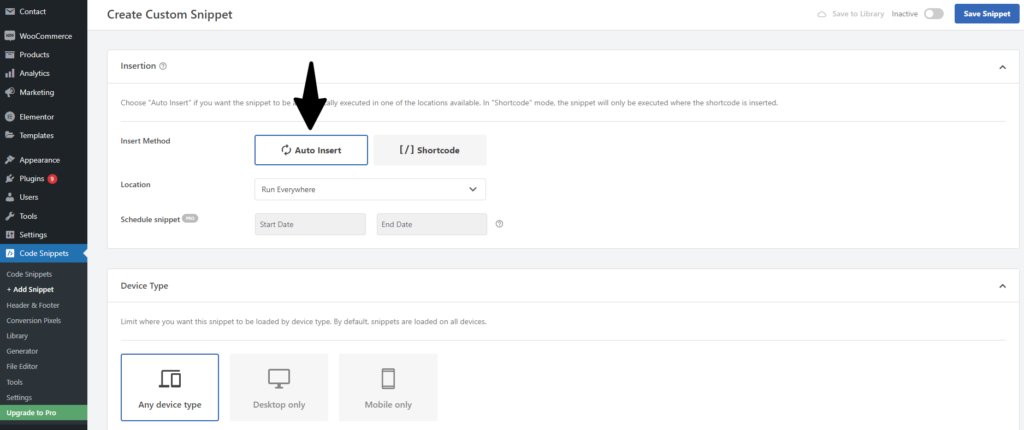
Next, scroll down to the ‘Insertion‘ area and select ‘Auto Insert‘.
Once activated, the custom code will be executed automatically on your website.
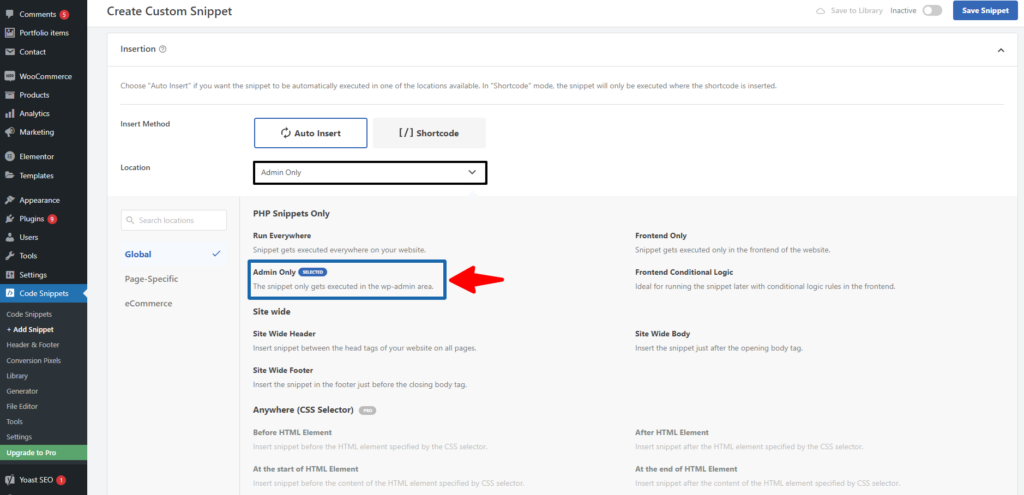
After that, click the ‘Location‘ dropdown menu and select ‘Admin Only‘.
Following that, the code snippet will only be run in the WordPress admin area when activated.
Now, go to the top of the page and change the switch from ‘Inactive’ to ‘Active‘ in the upper right corner, then click the ‘Save Snippet‘ button.
When you save and activate the code snippet, it will be executed immediately on your website.
Now, You will no longer see the administrator email verification notice.
Method 2: Use a Plugin to Disable the Admin Email Verification Notice.
If you don’t want to write code for your WordPress website, you can always use a plugin. First, install and activate the Make Disable Admin Email Verification Prompt plugin.
After activation, navigate to the Settings » General page in your WordPress admin dashboard and scroll down to the bottom. Here, you’ll see the ‘Disable Admin Email Verification Prompt’ option, which you must check.
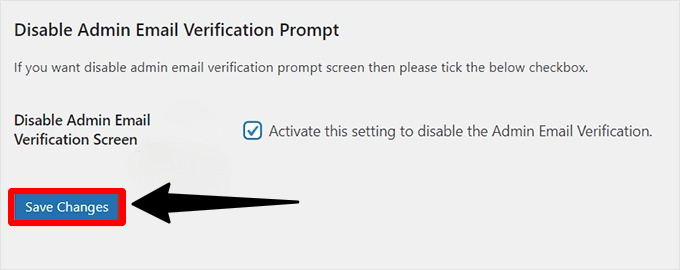
Once you’ve finished, remember to click the ‘Save Changes‘ button to save your settings. That is it! You and your team should no longer see the administrator email verification alert.
Read More Relevant Articles
- How to Delay Posts from Looking in the WordPress RSS Feed
- How to Enable Automatic Updates in WordPress for Major Versions
- How to Properly Disable Lazy Load in WordPress
- How to Easily Add Custom Code in WordPress
- 10+ Most Popular Digital Products Can Sell Online in 2024
- 10+ Best WordPress Themes for SEO Experts in 2024
- How to Do Keyword Research for Your WordPress Blog
- 10 Best Lead Generation Plugins for WordPress in 2024
- 7 Best WordPress Redirect Plugins
- 6 Best User Feedback Plugins for WordPress
The Final Thought
In conclusion, while the WordPress admin email verification notice is an important security feature, there are valid explanations for why administrators may choose to disable it. Administrators may streamline their workflow, improve the user experience, and gain more control over their WordPress environment by understanding the purpose of this feature and investigating efficient techniques for disabling it.
Whether through plugin solutions, direct code modification, or theme functions.php modifications, removing the admin email verification notice allows administrators to customize their WordPress experience to their specific preferences and needs.

