
Cart 0


Do you want to enable automatic updates for major WordPress updates? WordPress supports automatic updating for minor releases. This implies that the WordPress.org team can install security upgrades without requiring user interaction.
It does not, however, automatically update your website whenever a new major release is available. Fortunately, you can easily enable automatic updates for major releases as well. This article will show how to set up automatic WordPress updates for major versions.
How WordPress Automatic Updates Work
WordPress 3.7 included automatic updates. It allowed WordPress to automatically install new minor updates to increase the security of your WordPress site. WordPress includes an option to deactivate automatic updates. However, we request that you keep automatic updates enabled because they typically address critical security issues and weaknesses.
If you only have one or two WordPress websites, you may simply follow our instructions to safely update your WordPress site whenever there is a new major WordPress release. However, updating WordPress to the most recent version manually might be time-consuming if you manage several sites. Fortunately, managed WordPress hosting services such as WP Engine automatically update WordPress for all new versions, including minor ones.
With that said, here’s how to easily set up automatic upgrades for major WordPress releases. Here is what we will discuss in this tutorial.
Preparing for Automatic Updates in WordPress
The most important layer of protection you can add to any website is to implement a backup system. Whether you enable automatic updates or not, you should always have an automatic backup mechanism in place for your WordPress installation. Various useful WordPress backup plugins can help you set up automatic backups on your WordPress website.
We recommend Duplicator because it is the greatest WordPress backup plugin available, and it is free. Duplicator lets you effortlessly set up automatic backups of your entire WordPress website. It also allows you to automatically save backup data to a remote place such as Google Drive, Dropbox, or Amazon S3.
Once you’ve set up automatic WordPress backups, you can enable automated WordPress updates for major releases.
Method 1: Enable Automatic Updates for Major Releases From
When you go to the Dashboard » Updates page in your WordPress admin area, you will see the notice “This site is automatically kept up to date with WordPress maintenance and security releases only.” These are the small releases that we mentioned before.
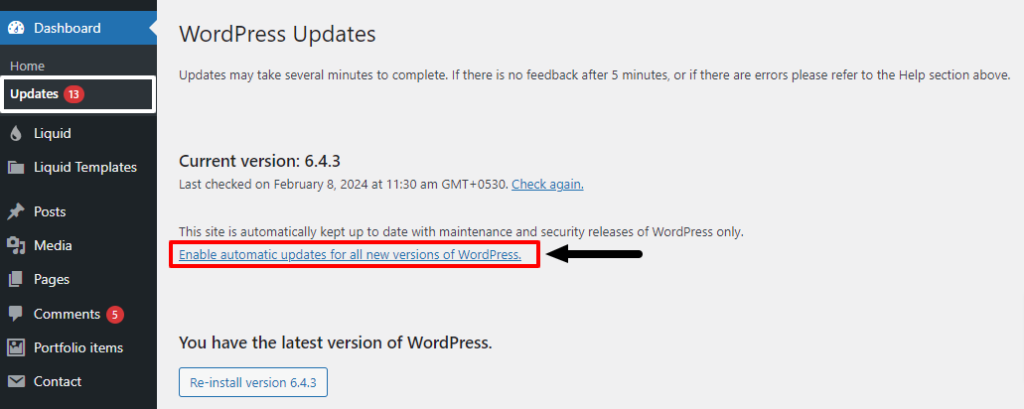
If you want all WordPress updates to be handled in the same manner, select the link labeled ‘Enable automatic updates for all new versions of WordPress.’ Major WordPress releases will now be automatically installed.
If you decide to disable automatic updates in the future, simply return to the Dashboard » Updates page and select the link labeled ‘Switch to automatic updates for maintenance and security releases only.‘
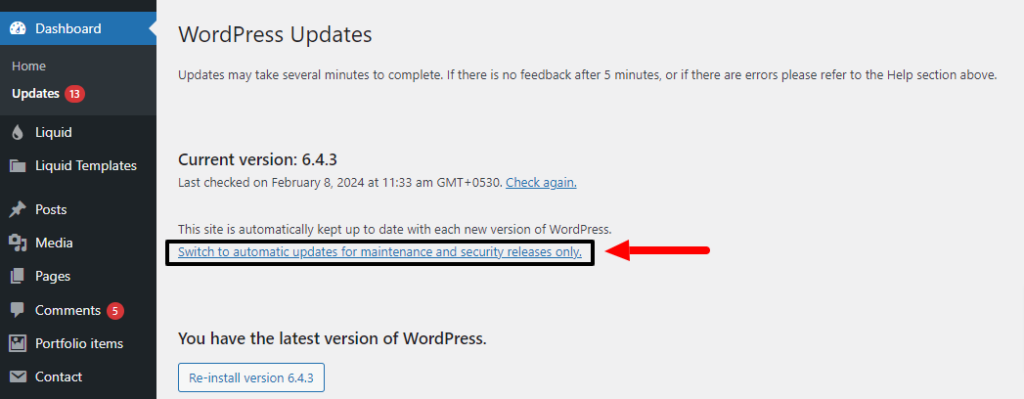
Minor releases and security updates will now be installed automatically, instead of major WordPress versions.
Method 2: Enable Automatic WordPress Updates for Major Releases Using a Plugin
The plugin method allows you greater control over what is changed on your website. It contains options for automatically updating WordPress core, plugins, themes, and other components.
First, install and activate the Easy Updates Manager plugin. After activation, go to the Dashboard » Updates Options page to configure the plugin.
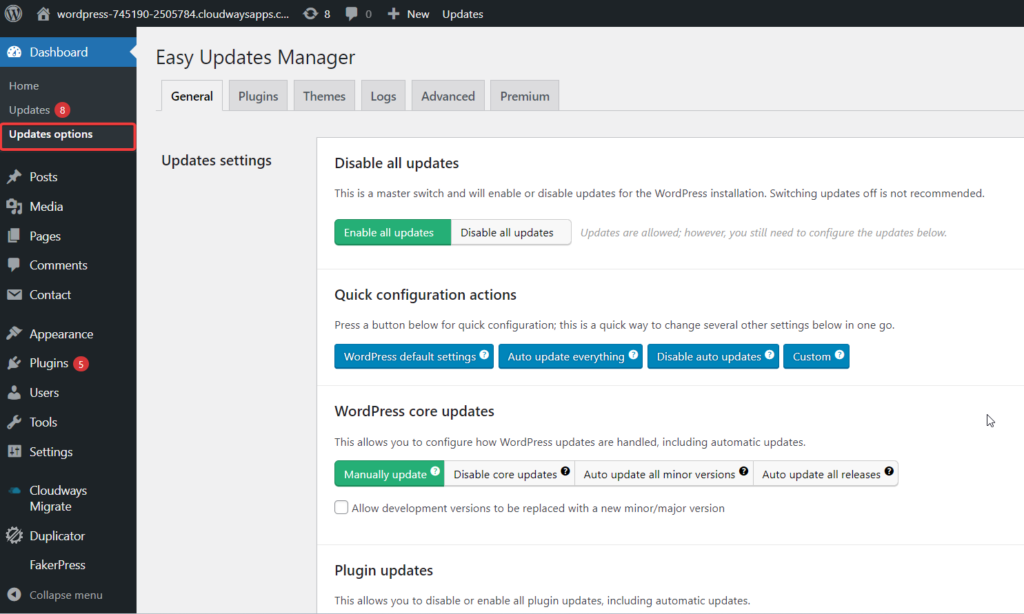
Under the ‘Quick configuration actions‘ section, select the ‘Custom‘ button. Click the ‘Auto-update all releases‘ button in the ‘WordPress core updates’ section.
The plugin will save your settings and allow major WordPress releases to be automatically updated. You may also use this plugin to automatically update your plugins and themes.
Method 3: Manually Enable Automatic Updates for Major Releases in WordPress
This solution requires you to include code in your WordPress files. First, add the following piece of code to your website’s wp-config.php file:
define( 'WP_AUTO_UPDATE_CORE', true );There is one minor issue with this code. It also allows for ‘nightly’ updates, or ‘nightlies.’ These are currently in development and may include flaws, so do not install them on a live WordPress site.
You can stop nightly builds and development updates by adding the following code to your theme’s functions.php file or using a code snippets plugin like WPCode.
add_filter( 'allow_dev_auto_core_updates', '__return_false' );This filter disables automatic updates for nightly builds and development updates.
Your WordPress site is now set to automatically update itself whenever a new WordPress version becomes available.
Benefits of Enabling Automatic Updates for Major Versions
Increased Security
Major upgrades frequently contain security patches and vulnerability fixes. Automatic updates ensure that your site is protected against emerging threats without the need for manual intervention.
Improved Performance
Major upgrades may contain performance improvements, bug fixes, and optimizations. Keeping your WordPress core up to date improves site speed and dependability.
Compatibility
Some plugins and themes may require specific WordPress versions to work properly. Automatically updating to the current major version ensures compatibility with the most recent themes and plugins, lowering the possibility of conflicts or issues.
Time-saving
Manually updating WordPress core can be time-consuming, especially if you have several sites. Automatic updates save you time by running the process in the background and avoiding the need for manual involvement.
Peace of Mind
Knowing that your site is frequently updated with the most recent features, security patches, and improvements can provide you with peace of mind. You may focus on developing content and expanding your website without having to worry about obsolete software.
Compliance
In some businesses or for some types of websites, having up-to-date software is required to comply with legislation or standards. Automatic updates assist ensure that your site fulfills these standards without requiring manual intervention.
Enabling automatic updates for major versions of WordPress is a proactive step toward maintaining a safe, dependable, and efficient website. Simply remember to check your site after changes to confirm that everything is working properly.
Also Read More Related Blogs
- How to Properly Disable Lazy Load in WordPress
- How to Easily Add Custom Code in WordPress
- 10+ Most Popular Digital Products Can Sell Online in 2024
- 10+ Best WordPress Themes for SEO Experts in 2024
- How to Do Keyword Research for Your WordPress Blog
- 10 Best Lead Generation Plugins for WordPress in 2024
- 7 Best WordPress Redirect Plugins
- 6 Best User Feedback Plugins for WordPress
- 7 Best WordPress Chat Plugins
- 5 Best Plagiarism Checker Tools for Your Site
The Sum Up
In conclusion, enabling automatic updates for major versions in WordPress is a proactive way to ensure your website’s security and reliability. By keeping your site updated, you not only defend it from risks but also gain access to new features and upgrades. With a few simple tweaks, you can automate the update process and focus on creating valuable content while ensuring your WordPress installation is up-to-date and secure.
This function is especially useful for people who do not have the technical ability or resources to keep up with regular changes. By allowing WordPress to handle major version upgrades automatically, you can keep your website up to date with the newest security fixes and improvements with minimal effort.

