
Cart 0



Often, when reading WordPress tutorials, you will be asked to include custom code snippets in your theme’s functions.php file or a site-specific plugin.
The difficulty is that even minor errors can cause your website to fail. In this tutorial, we’ll teach you how to easily add custom code to WordPress without affecting the site.
The Problem with Custom Code Snippets (And How to Solve It)
WordPress guides frequently include code snippets with instructions for adding them to your theme’s functions.php file or a site-specific plugin. The most serious issue is that even little errors in the custom code snippet might cause your WordPress site to malfunction and become unreachable.
Not to mention that updating your WordPress theme would delete all your adjustments. The other issue is that it can be difficult to manage the file if you include several code snippets in a site-specific plugin. Fortunately, users can easily install and manage custom code snippets in WordPress.
WPCode is the most popular code snippets plugin, with over 2 million active WordPress sites. It allows you to easily add code snippets to WordPress without editing your theme’s functions.php file.

WPCode also makes it easy to add tracking codes for Google Analytics, Facebook Pixel, Google AdSense, and other services to your website’s header and footer. You won’t have to worry about breaking your site because sophisticated code snippet validation prevents frequent code errors.
In addition, WPCode has a built-in snippets library containing all of the most common WordPress code snippets such as disabling REST API, disabling comments, disabling Gutenberg, allowing SVG file uploads, and much more. This avoids the need to install individual plugins for each feature request. The nicest aspect is that you can manage all of your code snippets from a single screen and apply categories to categorize them.
There’s also a free version of WPCode that provides all of the fundamental functionality required to add custom code to WordPress. With that said, let’s look at how to effortlessly add custom code snippets in WordPress using WPCode.
Adding Custom Code Snippets to WordPress
The first step is to install and activate the free WPCode plugin on your website. For additional information. When activated, the plugin will add a new menu item named ‘Code Snippets’ to your WordPress admin bar.
Click on it will display a list of all the custom code snippets you’ve saved on your site. Because you recently installed the plugin, your list will be empty. Click the ‘Add New‘ button to create your first custom code snippet in WordPress.

This will bring you to the ‘Add Snippet‘ page. You can select a code snippet from the pre-made library or create your own.
To add a new code, select ‘Add Your Custome Code (New Snippet)‘ and then click the ‘Use Snippet‘ button.

You must begin by providing a title for your code snippet. This might be anything that allows you to identify the code.
Following that, copy and paste your code snippet into the Code Preview box. Make sure you select the appropriate code type from the drop-down option on the right.

You must begin by providing a title for your code snippet. This might be anything that allows you to identify the code.
Following that, copy and paste your code snippet into the Code Preview box. Make sure you select the appropriate code type from the drop-down option on the right.
function wpdruggy_remove_version() {
return '';
}
add_filter('the_generator', 'wpb_remove_version');
Insertion options are displayed below the code box. There are two basic insertion methods: auto insert and shortcode (default).

If you select the ‘Auto Insert‘ option, the snippet will be automatically placed and executed on your website.
You can configure the snippet to run solely in the WordPress admin area, on the front end of your site, or everywhere. You can also place your snippet in page-specific areas, such as before or after posts, or within post content.
Shortcode Snippet Methods

If you’re unsure, choose the default ‘Run snippet everywhere’ option. With the ‘Shortcode’ technique, the snippet is not immediately inserted. When you save the snippet, you will receive a snippet-specific shortcode that you can use anywhere on your website.
Scrolling down will reveal a ‘Basic info’ section. You can include anything here that explains what this code does, where you found it, and why you’re putting it on your website.

For example, you can restrict code snippets to logged-in users, load code snippets only on specified page URLs, and so on.
When you’ve completed selecting options, change the switch in the top right corner from ‘Inactive’ to ‘Active‘ and then click the ‘Save Snippet‘ button.

Manage Your Custom Code Snippets
You can also export certain code snippets individually or in bulk.
Simply navigate to Code Snippets » Tools and click the ‘Export‘ tab.
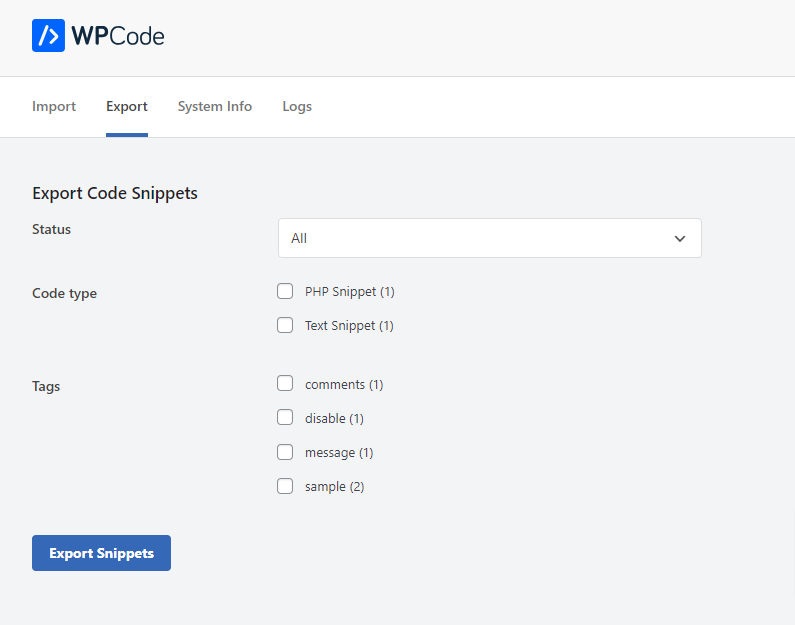
If you’re transferring a website to a new host, you can effortlessly import your code snippets.
Simply go to the Code Snippets » Tools » Import page and upload the export file.

Read More Relevant Articles
- 10+ Most Popular Digital Products Can Sell Online in 2024
- 10+ Best WordPress Themes for SEO Experts in 2024
- How to Do Keyword Research for Your WordPress Blog
- 10 Best Lead Generation Plugins for WordPress in 2024
- 7 Best WordPress Redirect Plugins
- 6 Best User Feedback Plugins for WordPress
- 7 Best WordPress Chat Plugins
- 5 Best Plagiarism Checker Tools for Your Site
- 5 Best WordPress Plugins to Duplicate Site
- Top 10 Best FAQ WordPress Plugins to Establish a Self-Service Help
The Sum Up
Finally, incorporating custom code into WordPress can significantly improve the functionality and design of your website. By following the procedures given in this post, you may effectively integrate custom code snippets into your WordPress site without affecting its stability and security.
Remember to always test your code changes on a staging site before applying them on your live site, and if you run into any problems, consider contacting a developer or WordPress specialist. With the appropriate approach, you can discover limitless opportunities for customization and innovation on the WordPress platform.

