
Cart 0


Do you want to disable overflow on your WordPress site? When an element on a page is too broad to fit on the screen, a horizontal scroll bar displays. Most WordPress themes avoid horizontal scrolling since it can disrupt your site’s layout and confuse viewers. In this article, we will show how to disable overflow in WordPress and remove the horizontal scroll bar.
What Causes a Horizontal Scroll Bar or Overflow in WordPress?
When creating your WordPress website, make sure it’s easy to use and available to everyone. When an element exceeds the width of your website layout, WordPress will display a horizontal scrollbar. This is referred to as ‘overflow.’ A horizontal scroll bar might break up your design and make your website less user-friendly. A web page featuring both horizontal and vertical scroll bars might be distracting to the viewer and difficult to navigate.
It can lead to visitors leaving your site, resulting in reduced conversions and revenues. Disabling overflow can benefit you by making your site more user-friendly, resulting in a fixed-width layout and improving overall responsiveness. With that in mind, here’s how to easily remove the overflow horizontal scroll bar in WordPress:
- Method 1: Add the CSS Snippet using Theme Customizer
- Method 2: Add the CSS Snippet using WPCode
Method 1: Add the CSS Snippet using Theme Customizer
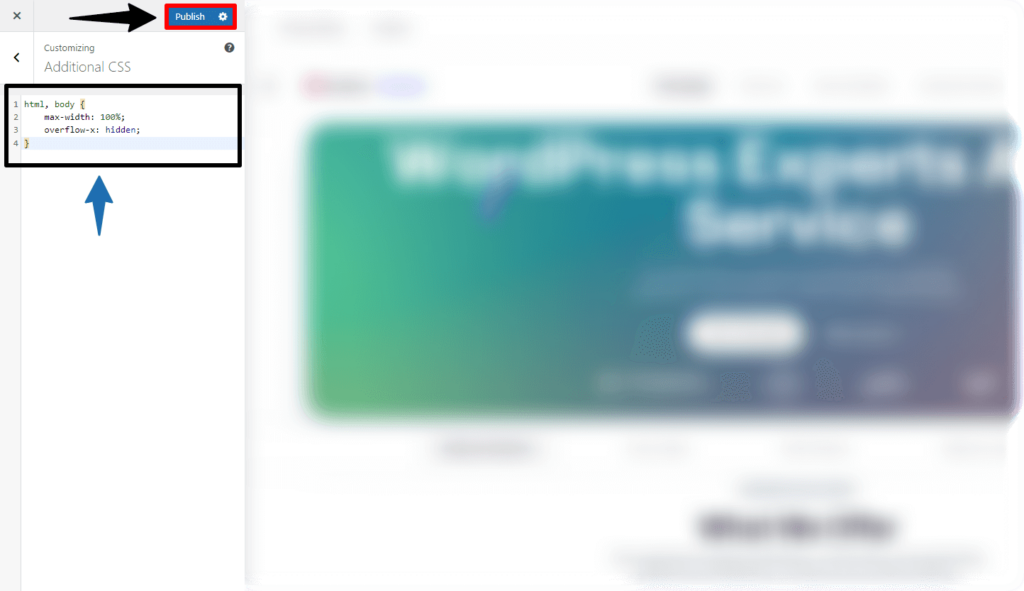
To disable the overflow in WordPress, just add CSS code to the theme customizer’s ‘Additional CSS‘ option.
All you have to do is go to the Appearance » Customize page in the WordPress dashboard.
Keep In Mind: You may see Appearance » Editor instead of Customize. This represents that your theme is using the full-site editor (FSE) instead of the Theme Customizer, and you should follow Method 2 below.

Once you’re on the Customize page, select the ‘Additional CSS‘ tab.
Then, simply copy and paste the following code:
html, body {
    max-width: 100%;
    overflow-x: hidden;
}
Once completed, any overflow will be removed and seen in your website’s live preview pane.
Don’t forget to click the ‘Publish‘ button at the top of the page when you are done!
Method 2: Add the CSS Snippet using WPCode
The CSS code can also be added as a code snippet using the WPCode plugin. WPCode is the best WordPress code snippet plugin on the market, with over a million websites.
We recommend this option as the plugin allows you to add custom code to WordPress without having to alter any of your theme files. First, set up and activate the WPCode plugin on your website.
Once activated, click on the Code Snippets » + Add Snippets page from the WordPress dashboard. Once there, click the ‘Use Snippet‘ button next to the ‘Add Your Custom Code (New Snippet)‘ option.

This will direct you to the ‘Create Custom Snippet‘ page, where you can begin by providing a title for your code snippet. This name will not be exposed to other users and is only for personal identification.
Next, choose ‘CSS Snippet‘ as the code type from the dropdown menu on the right. If you’re using the free WPCode plugin, you’ll need to choose the ‘Universal Snippet’ option.

Next, copy and paste the following CSS code snippet into the ‘Code Preview‘ box:
<style type="text/css">
html, body {
    max-width: 100%;
    overflow-x: hidden;
}
</style>
After that, scroll down to the ‘Insertion’ area, which includes two options: ‘Auto Insert‘ and ‘Shortcode.’
Select ‘Auto Insert‘ mode to have your code executed automatically when activated.

However, use the’ Shortcode’ mode if you only want to deactivate the horizontal scroll bar on certain pages.
When you activate the snippet, WPCode will generate a shortcode that you can put into a specified website region or page to remove the overflow.
Once you’ve chosen an option, go to the top of the page and change the switch from ‘Inactive’ to ‘Active‘ in the upper right corner.
Then click the ‘Save Snippet‘ button.

That is it! You just removed any horizontal disable overflow scroll bars from your website.
Read More Relevant Blogs
- How to Disable WordPress Admin Email Verification Notice
- How to Delay Posts from Looking in the WordPress RSS Feed
- How to Enable Automatic Updates in WordPress for Major Versions
- How to Properly Disable Lazy Load in WordPress
- How to Easily Add Custom Code in WordPress
- 10+ Most Popular Digital Products Can Sell Online in 2024
- 10+ Best WordPress Themes for SEO Experts in 2024
- How to Do Keyword Research for Your WordPress Blog
- 10 Best Lead Generation Plugins for WordPress in 2024
- 7 Best WordPress Redirect Plugins
The Final Thought
In conclusion, disabling overflow and removing horizontal scroll in WordPress is critical for providing a smooth and user-friendly surfing experience on your website. By making the necessary CSS changes or using plugins developed for this purpose, you may successfully manage content overflow and avoid not appealing horizontal scrolling.
Prioritizing readability and accessibility improves the overall quality of your website, encouraging positive user engagement and repeat visits. With careful attention to detail and the application of best practices, you can optimize your WordPress site for maximum performance and satisfaction with customers.

