
Cart 0


Do you notice the ‘Post-Processing of Image Failed’ issue in WordPress? This problem commonly happens when you try to upload an image file to WordPress using the built-in media uploader. In this article, we will show you how to simply resolve the ‘Post-Processing of Image Failed’ upload error in WordPress.
What Causes the ‘Post-Processing of Image Failed’ Error?
When you upload an image to a post or the media library on your WordPress website, numerous things happen. The image file is uploaded to your WordPress hosting server.
An attachment page is established, and post-processing is performed by a PHP image editing module. Unfortunately, during the picture upload process, you might get a WordPress error notice like this:
‘Post-processing of the image likely failed because the server is busy or does not have enough resources. Uploading a smaller image may help. Suggested maximum size is 2500 pixels.’

Make Sure the HTTP Error Is Not Temporary
First, make sure that the file name does not contain any special characters, such as an apostrophe. If it does, rename the image file. Next, wait a few minutes before attempting to upload your image file again. If your server was just busy, as the notification suggests, it could have been due to exceptional traffic or a lack of server resources.
Most WordPress hosting servers automatically address problems like these. If you’re still having trouble uploading images after a while, you might try uploading another file. You could also try emptying your browser’s cache or using another web browser.
If you still receive the ‘Post-Processing of Image Failed’ error in WordPress after following these instructions, the issue is not a transient glitch, and you should continue troubleshooting.
Increase the WordPress Memory Limit
The error message suggests your server may not have sufficient resources. Let us boost the amount of memory available to WordPress.
You’ll need to increase the amount of memory PHP can access on your server. You can do this by including the following code in your wp-config.php file.
define( 'WP_MEMORY_LIMIT', '256M' );This code boosts the WordPress memory limit to 256MB, which should resolve any memory limit issues. You might also want to check if the file exceeds your website’s upload limit.

Optimize the Image to Make It Smaller
The error notice indicates uploading a smaller image might help. It suggests that the longest edge of your image be no more than 2500 pixels. When beginning a new blog, many people upload photographs without optimizing them for the web. This might result in an error notice like this, but huge picture files will also slow down your website.
Having a slow website will lower your overall SEO ranking. To optimize the image, use image editing software to save it in the appropriate file format (such as JPEG, PNG, or GIF), resize the image dimensions to a lower size, and compress the image to reduce the file size even further.
It is important to keep in mind that this error message can show up even when uploading smaller photos. If you notice the error even after uploading optimized photos, proceed to the next stage of troubleshooting.
Change Image Editor Library Used by WordPress
WordPress uses two PHP modules to post-process images: ImageMagick and the GD Library. WordPress may utilize either one, depending on what is available. However, ImageMagick can experience memory difficulties, resulting in errors during picture uploads.
To fix this, set the GD Library as your default image editor. You can simply insert this code into your theme’s functions.php file, a site-specific plugin, or a code snippets plugin.
function wpdruggy_image_editor_default_to_gd( $editors ) {
    $gd_editor = 'WP_Image_Editor_GD';
    $editors = array_diff( $editors, array( $gd_editor ) );
    array_unshift( $editors, $gd_editor );
    return $editors;
}
add_filter( 'wp_image_editors', 'wpdruggy_image_editor_default_to_gd' );
The fastest and safest way to add this code to WordPress is to use WPCode, the greatest code snippets plugin with over 2 million users.
WPCode allows you to add custom code without having to alter your theme’s functions.php file, which means you won’t risk harming your WordPress site. To get started, install and activate the free WPCode plugin. If you need assistance, consult our tutorial on how to install a WordPress plugin.
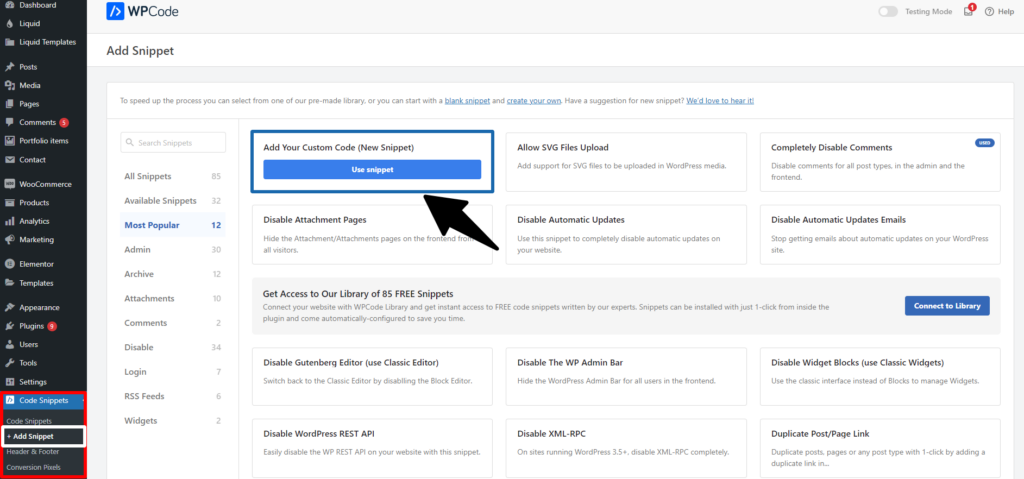
Once the plugin is activated, navigate to the Code Snippets » + Add Snippet page in your WordPress dashboard. Then, locate the ‘Add Your Custom Code (New Snippet)‘ option and select the ‘Use Snippet‘ button beneath it.
Next, add a title for your snippet and paste the code from above into the ‘Code Preview‘ box.
Don’t forget to select ‘PHP Snippet‘ from the code type choice on the right side of the screen.

After that, simply switch from ‘Inactive’ to ‘Active‘ and click the ‘Save Snippet‘ button.

After adding this code, try uploading the image again.
Read More Relevant Articles
- How to Block WordPress Referrer Spam in Google Analytics
- How to Fix WordPress SEO Crawl Budget Problem
- How To Easily Disable the Default WordPress Sitemap
- How to Disable Overflow in WordPress – Remove Horizontal Scroll
- How to Disable WordPress Admin Email Verification Notice
- How to Delay Posts from Looking in the WordPress RSS Feed
- How to Enable Automatic Updates in WordPress for Major Versions
- How to Properly Disable Lazy Load in WordPress
- How to Easily Add Custom Code in WordPress
- 10+ Most Popular Digital Products Can Sell Online in 2024
The Last Conclusion
In conclusion, resolving the “Post-Processing of Image Failed” error in WordPress can significantly improve your website’s performance and user experience. By following the steps outlined above, including checking file permissions, ensuring adequate server resources, and verifying plugin compatibility, you can effectively troubleshoot and fix this issue.
Remember to always keep your WordPress installation, themes, and plugins up to date to minimize the development of such errors in the future. With a proactive approach and attention to detail, you can maintain a smooth and seamless website experience for your visitors.

