
Cart 0



In our many years of experience with WordPress, one method that has always produced success is targeting ads to search engine traffic. It appears that search engine users are more inclined than normal readers to click on customized adverts.
By displaying advertising solely to these visitors, you may improve click-through rate (CTR) and sales. In this article, we will demonstrate how to display advertising just to search engine visitors in WordPress.
Why Display Ads to Only Search Engine Visitors?
In our many years of experience with WordPress, one method that has always produced success is targeting ads to search engine traffic. It appears that search engine users are more inclined than normal readers to click on customized adverts.
By displaying advertising solely to these visitors, you may improve click-through rate (CTR) and sales. In this article, we will demonstrate how to display advertising just to search engine visitors in WordPress.
There are multiple ways to make money online, and one of them is via showing advertisements.
You may use Google AdSense to display adverts on your WordPress blog and earn a predetermined fee whenever a user clicks on them. This method is known as cost-per-click (CPC).
However, gaining more clicks can be difficult if the advertising is not customized to the correct audience. This is where limiting ads to search engine users may help increase ad income.
Various research, industry experts, and our own experience demonstrate that visitors from search engines are more likely to click on advertising on your website than other visitors. You may enhance your CPC by showing the correct adverts to the right users.
This method also helps to display advertising just when they are required. Too many adverts can be annoying and negatively impact the user experience. Your WordPress website will be less crowded with adverts because they will only be displayed to search engine visitors.
That being said, let’s look at how to display adverts solely to search engine visitors.
Showing Ads to Only Search Engine Visitors
To display advertising just to visitors from search engines, add a custom code snippet to your WordPress website.
This may appear complicated and tough, but we will show a simple technique to add code snippets without modifying code or paying a developer.
If you haven’t already set up advertisements on your site, please refer to our article on how to correctly add Google AdSense to WordPress.
Next, install and activate the WPCode plugin. For additional information, visit our tutorial on how to install a WordPress plugin.
WPCode is the greatest code snippet plugin for WordPress, allowing you to embed custom code anywhere on your website. It also allows you to manage and organize all of your code snippets.
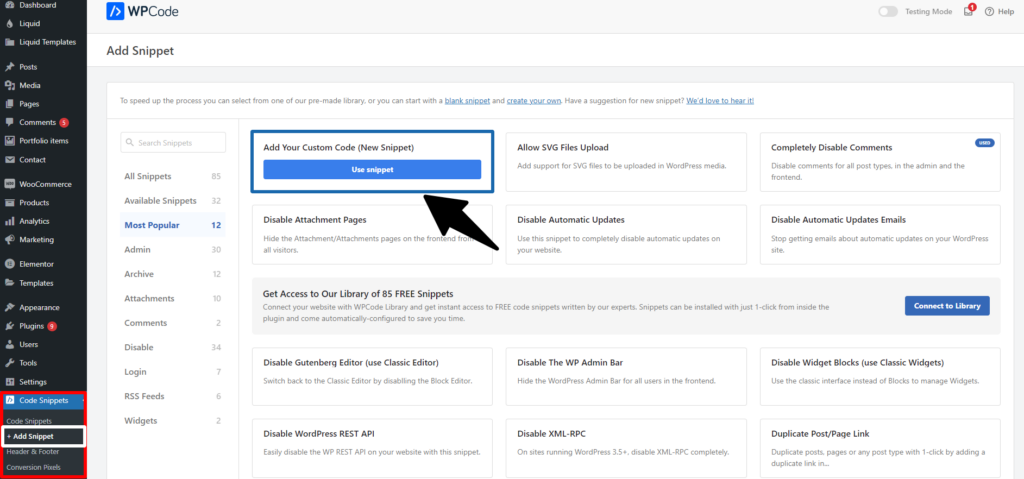
Once activated, click Code Snippets » + Add Snippet from your WordPress dashboard. Next, select the ‘Add Your Custom Code (New Snippet)‘ option.

From here, you will need to copy this code snippet:
$ref = $_SERVER['HTTP_REFERER'];
$SE = array('/search?', 'images.google.', 'web.info.com', 'search.', 'del.icio.us/search', 'soso.com', '/search/', '.yahoo.');
foreach ($SE as $source) {
  if (strpos($ref,$source)!==false) {
    setcookie("sevisitor", 1, time()+3600, "/", ".wpdruggy.com");
    $sevisitor=true;
  }
}

function wpdruggy_from_searchengine(){
  global $sevisitor;
  if ($sevisitor==true || $_COOKIE["sevisitor"]==1) {
    return true;
  }
  return false;
}
Next, put the code into the WPCode ‘Code Preview’ field. You must also give your snippet a name before clicking the ‘Code Type’ dropdown menu and selecting ‘PHP Snippet’ from the options.
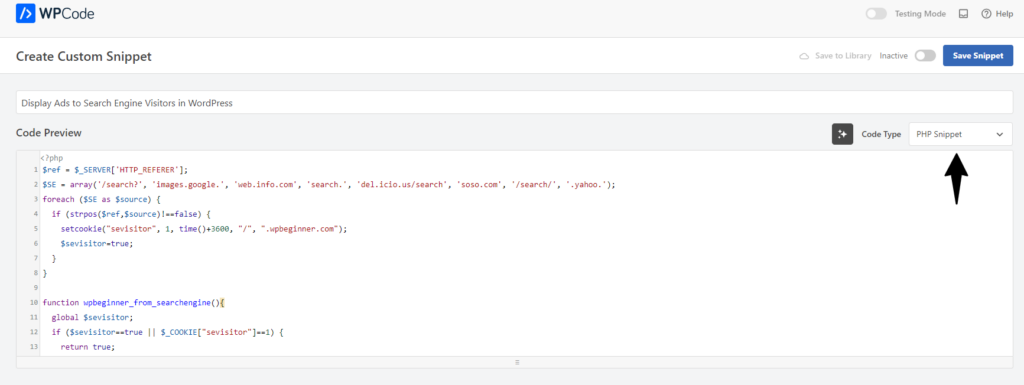
After that, scroll down and choose the Insertion technique for the code snippet.
WPCode will use the ‘Auto Insert’ option by default and execute the code everywhere. However, you may adjust this and place the custom code on select pages, before or after content, on eCommerce pages, and so on.

Alternatively, you may use the ‘Shortcode’ insertion technique and manually enter a shortcode to execute the code snippet.
For this code snippet, we suggest using the Auto Insert technique.
Once you’ve finished, remember to activate the code snippet by clicking the toggle at the top, followed by the ‘Save Snippet’ button.

Choose Where to Display Ads on Your Site
Next, you’ll need to add another code snippet and specify where you want the adverts to appear for solely search engine users.
Simply copy the code below:
<?php if (function_exists('wpdruggy_from_searchengine')) {
  if (wpdruggy_from_searchengine()) { ?>
    INSERT YOUR CODE HERE
<?php } } ?>
The snippet above uses the first code as a reference to determine whether the referrer agent comes from any form of search URL, such as Google, Yahoo, Delicious, and others.
If a visitor’s browser indicates that the referrer agent is from any of the search sites you have defined, it will store a cookie named ‘visitor’ on their browser for one hour after they visit your website.
To add the code, navigate to Code Snippets » + Add Snippet in your WordPress dashboard and choose ‘Add Your Custom Code (New Snippet)‘.
Next, label your code snippet and paste it into the ‘Code Preview‘ field.
You will also need to modify the ‘Code Type‘ by clicking the dropdown menu and selecting ‘PHP Snippet‘.
After that, click the ‘Save Snippet‘ button and then scroll down to the Insertion section.
You will need to select the ‘Shortcode‘ approach. This allows you to effortlessly add the shortcode to display advertising anywhere on your website.

You can copy the shortcode or write it down in a notepad document.
When you’re finished, remember to activate the code by clicking the toggle at the top and then clicking the ‘Update’ button.
To add the shortcode, navigate to any section of your website. For example, if you want to display banner adverts to search engine users in the sidebar, simply navigate to Appearance » Widgets in the WordPress dashboard.
From here, select the ‘+’ button to add a Shortcode widget block to the sidebar section.
Enter the shortcode you’ve just copied. Once you’re finished, click the ‘Update’ button.
WordPress will now display the search engine-specific advertising you’ve selected to these users for one hour after they first visit your site.
If this user bookmarks your site and returns one day later because they enjoy your content, they will be deemed a regular reader and will not encounter search engine-specific adverts.
Also, Read More Relevant Blogs
- How to Remove Default Author Profile Fields in WordPress
- How to Disable Automatic Formatting in WordPress Posts
- How to Automatically Empty Your WordPress Trash
- How to Fix Yoast’s WordPress SEO Sitemap 404 Error
- How to Allow Users to Subscribe to Categories in WordPress
- How to Fix the Syntax Error in WordPress
- How to Fix WordPress Posts Returning 404 Error
- How to Upload an HTML Page to WordPress Without 404 Errors
- How to Fix PHP Missing MySQL Extension Error in WordPress
- How to Add a Custom Database Error Page in WordPress
The Last Line
Targeting search engine visitors specifically in WordPress is a strong method for increasing the efficacy of your adverts. You can use conditional logic and the appropriate plugins or custom code to ensure that advertising is only displayed to users who arrive via search engines.
This method aids in increasing ad revenue, improving user experience, and keeping a clean website layout for new and returning users. Remember to review your ad performance regularly and make changes as needed to maximize your strategy. Implementing this strategy can result in increased engagement rates and a greater return on investment for your advertising efforts.

