
Cart 0



Do you want to fix Yoast SEO’s sitemap 404 error in WordPress? Yoast SEO is a popular SEO plugin for WordPress. When you try to access your XML sitemap, you may receive a 404 error because of a plugin conflict or incorrect WordPress settings. In this article, we’ll demonstrate how to simply resolve the Yoast SEO XML sitemap 404 problem in WordPress.
What’s Causing Yoast SEO Sitemap 404 Error in WordPress?
The Yoast SEO sitemap directs search engines to all of the material on your website that you want them to find and index.
Fixing this problem allows search engines to access your sitemap and discover all of the pages and material on your website, perhaps leading to increased search engine visibility and ranking. Including a sitemap can boost your content’s ranking faster than without one.
WordPress provides a default XML sitemap that may be submitted to Google Search Console and other search engines.
To view this XML sitemap, type the following URL into your browser’s address bar.
However, the default WordPress-generated sitemap is extremely rudimentary. Top WordPress SEO plugins, such as All in One SEO for WordPress and Yoast SEO, generate custom XML sitemaps with added functionality to address this problem.
WordPress SEO plugins build an XML sitemap that replaces the default WordPress XML sitemap shortcut.
This implies that the sitemap URL provided above will now direct people to the sitemaps created by your WordPress SEO plugin.
Incorrect WordPress settings or plugin conflicts can result in a 404 error on certain websites.
That being stated, let’s look at how to simply fix the WordPress sitemap 404 problem using the Yoast SEO plugin.
1. Refresh WordPress Permalink Structure
WordPress provides an SEO-friendly URL structure (also known as permalinks). This URL structure employs a redirect mechanism to instruct your web hosting server which page to load when a user types a URL into their browser.
These permalink settings are typically changed automatically when you make changes to your website.
However, WordPress can forget to renew the permalink structure, resulting in Yoast SEO’s sitemap 404 error.
To correct this, go to the Settings » Permalinks page in the WordPress admin area and click the ‘Save Changes‘ button.
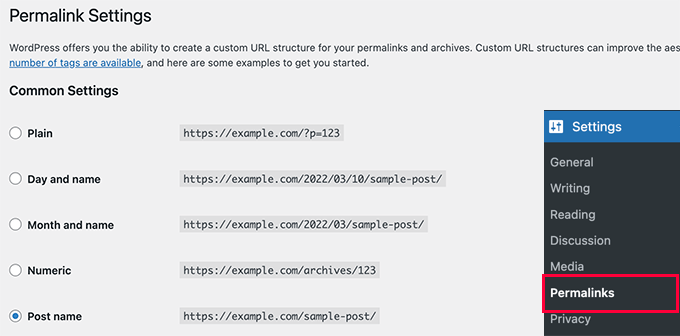
This will refresh the WordPress permalink settings. You can now check your XML sitemap page to determine whether this has resolved your issue.
If that doesn’t solve the problem, you can keep reading.
2. Manually Update Permalinks
If refreshing your WordPress permalink structure does not resolve the 404 problem, you can manually instruct your web server to redirect users to Yoast SEO’s sitemap page.
To achieve this, add the following code to your.htaccess file.
1-click Use in WordPress
Note: If your WordPress website is installed in a subdirectory or folder (e.g. https://example.com/mywebsite/ ), then you’ll need to use the following code.
Don’t forget to replace /my website/ with your subdirectory name.
This code simply tells your web server which pages to display when users access Yoast SEO’s XML sitemaps.
You can now try viewing your XML sitemap to see if this resolves your issue.
3. Switch to an XML Sitemaps Plugin
If the solutions mentioned above do not resolve the 404 problem on Yoast SEO’s XML sitemap page, you can try using a different plugin to build XML sitemaps for your website.
The disadvantage of this strategy is that you will need to use a separate plugin to produce XML sitemaps and Yoast SEO for other SEO functions.
First, install and activate the XML Sitemaps plugin. Check out our step-by-step tutorial for installing WordPress plugins.
Because you are using Yoast SEO, you will receive an automatic message to disable either the XML Sitemaps plugin or the Yoast SEO sitemap functionality.
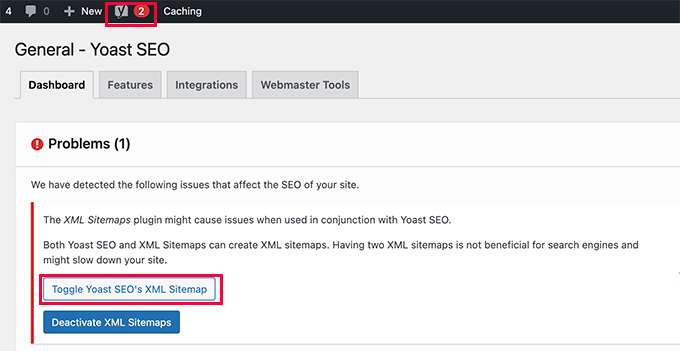
Click on the Toggle Yoast SEO’s XML Sitemap button to continue.
This will bring you to the Features tab under the SEO » General page. From here, you need to scroll down to the XML Sitemaps option and switch it off.
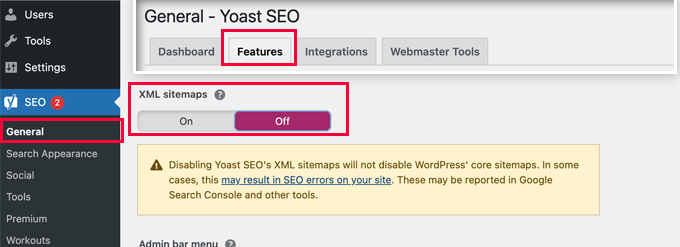
Don’t forget to click on the ‘Save Changes’ button to store your settings.
You can now switch to the Settings » XML-Sitemap page to configure your sitemaps. For most websites, default settings would work out of the box.
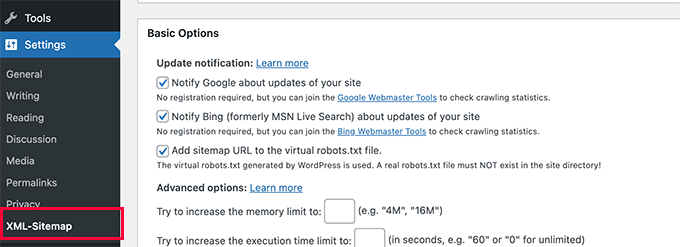
However, you can always change the settings according to your needs.
You may now send the XML sitemap URL to Google Search Console and other search engines.

4. Switch to the All-in-One SEO for WordPress
If all analysis methods fail and you do not want to use a separate plugin to generate XML sitemaps, this solution may help fix the sitemap 404 error issue.
This strategy requires All in One SEO for WordPress. This WordPress SEO plugin is superior to Yoast SEO in terms of functionality.
Refer to our comparison article for more information on the differences between Yoast and All in One SEO.
All-in-One SEO (AIOSEO) includes powerful XML sitemaps with simple management tools that offer complete control over what to include and exclude from your sitemaps.
First, install and activate the All in One SEO for WordPress plugin. Check out our step-by-step tutorial for installing WordPress plugins.
All-in-One SEO for WordPress offers a free edition that contains most XML sitemap functions but excludes video and news sitemaps.
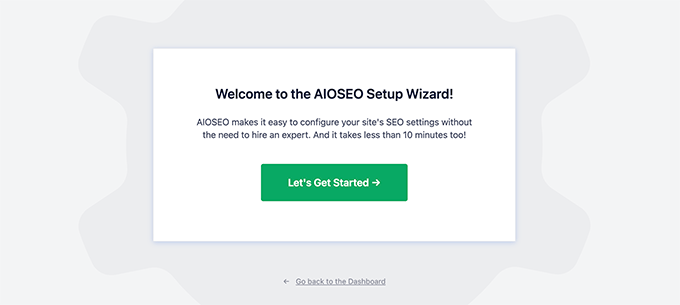
When activated, the plugin will take you through a setup wizard. For assistance with setting up the All in One SEO plugin for WordPress, please refer to our instructions.
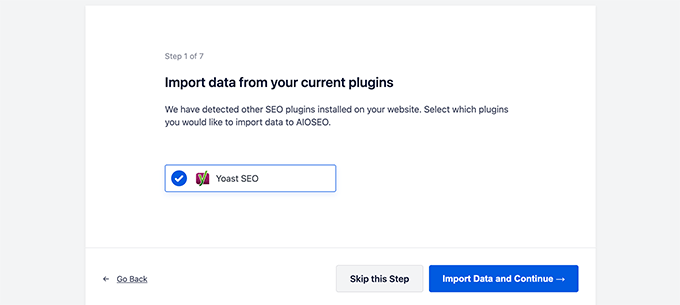
All-in-One SEO will also allow you to import SEO data from Yoast SEO.
This ensures that all your previous SEO meta tags and titles remain unchanged.
After the initial setup, you can go to All in One SEO » Sitemaps page to configure XML sitemap settings.
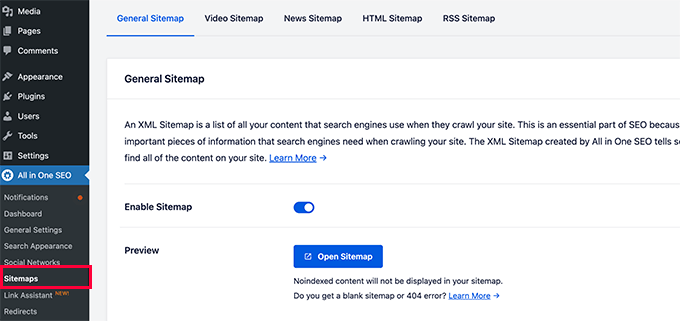
You can click on the Open Sitemap button to see if it fixed the sitemap 404 error in WordPress.
After that, you configure sitemap settings if needed.
For instance, All in One SEO allows you to choose what to include in your sitemaps. You can add or remove post types, taxonomies, individual posts, and pages.
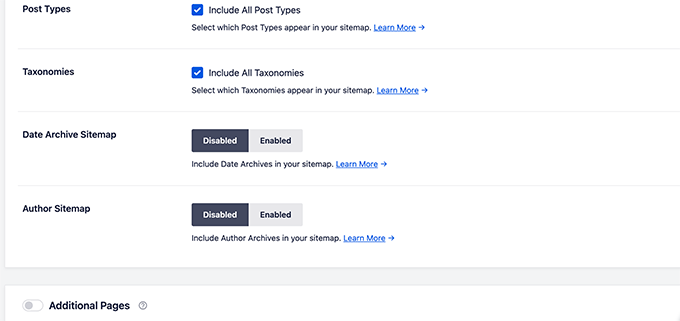
All-in-One SEO also allows you to create video, news, RSS sitemap, and HTML sitemap for your website.
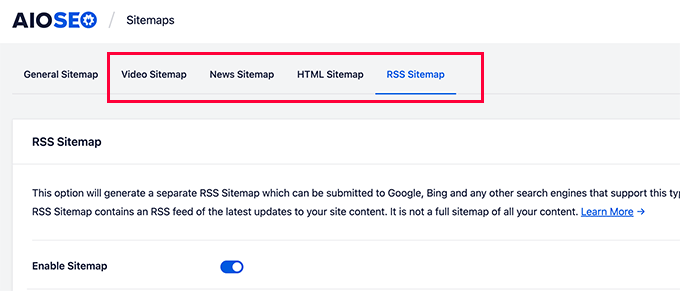
You can submit these sitemaps to Google Search Console and other search engines. This allows search engines to easily identify newer information on your website.
Also, Read More Relevant Articles
- How to Allow Users to Subscribe to Categories in WordPress
- How to Fix the Syntax Error in WordPress
- How to Fix WordPress Posts Returning 404 Error
- How to Upload an HTML Page to WordPress Without 404 Errors
- How to Fix PHP Missing MySQL Extension Error in WordPress
- How to Add a Custom Database Error Page in WordPress
- Top 9 Reasons WordPress Websites Get Hacked: How to Stay Safe
- How to Create Custom RSS Feed in WordPress
- How to Allow Users to Post Anonymous Comments on WordPress
- How to Add Ads Within Your Post Content in WordPress
The Final Conclusion
In conclusion, allowing users to subscribe to categories in WordPress is a successful strategy to increase user engagement and make sure your audience receives information that is relevant to their interests. You can provide your readers with a more personalized experience by using plugins, custom code, or themes that support category subscriptions.
This technique not only improves user pleasure but also improves website traffic and retention rates. Implementing category subscriptions is a strategic step that addresses the growing desire for personalized content distribution, ultimately contributing to your WordPress site’s overall success.

