
Cart 0



Would you like to disable automatic formatting in WordPress posts? By default, WordPress styles texts by replacing quotes with fancy quotes and cleaning up the text. This stops viewers from seeing code, raw text, or CSS/Javascript code examples. In this article, we will demonstrate how to avoid disable automatic formatting in WordPress posts.
Why Disable WordPress Formatting in WordPress Posts?
Cleaning up text is a built-in feature in WordPress. This feature substitutes quotations with fancy quotes and removes necessary tags for displaying HTML, CSS, or JavaScript. There are several ways to simply show code in WordPress, allowing you to forgo the usual formatting. Check out our article on displaying code in WordPress.
However, some advanced users may prefer to disable WordPress auto-formatting on their sites. This allows them to simply bypass WordPress formatting checks and show raw text on their website as needed. That being said, let’s look at how to easily disable automatic formatting in WordPress posts on your site. We’ll show you two techniques so you may choose the one that best meets your needs.
Method 1. Manually Disable Automatic Formatting in WordPress Posts
This solution requires you to apply custom code to your WordPress website. To learn how to copy and paste custom code snippets in WordPress, please refer to our guide. To begin, copy and paste the code below into your theme’s functions.php or code snippets plugin.
function my_formatter($content) {
$new_content = '';
$pattern_full = '{([raw].*?[/raw])}is';
$pattern_contents = '{[raw](.*?)[/raw]}is';
$pieces = preg_split($pattern_full, $content, -1, PREG_SPLIT_DELIM_CAPTURE);

foreach ($pieces as $piece) {
if (preg_match($pattern_contents, $piece, $matches)) {
$new_content .= $matches[1];
} else {
$new_content .= wptexturize(wpautop($piece));
}
}

return $new_content;
}

remove_filter('the_content', 'wpautop');
remove_filter('the_content', 'wptexturize');

add_filter('the_content', 'my_formatter', 99);
We propose adding this code with the WPCode plugin. It’s the most secure and simple way to add custom code to WordPress without altering your theme files. To get started, install and activate the free WPCode plugin. For assistance, refer to our article on installing WordPress plugins.
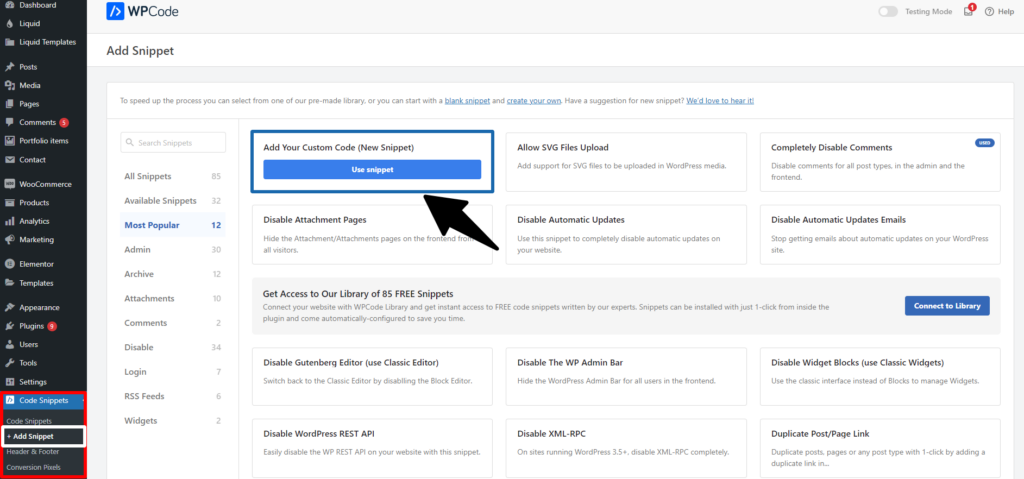
Once the plugin is activated, navigate to Code Snippets » Add Snippet in your WordPress dashboard. Then, hover over the ‘Add Your Custom Code (New Snippet)‘ option and select the ‘Use Snippet‘ button.
Next, give your snippet a title, which can be anything that will help you remember what the code is for.
Then, paste the preceding code into the ‘Code Preview‘ box and select ‘PHP Snippet‘ from the dropdown option.

Finally, change the switch from ‘Inactive‘ to ‘Active‘ and press the ‘Save Snippet‘ button at the top of the screen.

The code above instructs WordPress to remove the formatting option if some text has been included inside the raw shortcode.
To avoid WordPress formatting, add the HTML block to your WordPress post editor. You can enter unformatted text or code into the raw shortcode field in the post editor.
[raw]Unformatted code[/raw] 
The problem with this solution is that it would not function well with the block editor. Even within an HTML block, it may act strangely.
Method 2. Disable Automatic Formatting in WordPress Posts Using Plugin
This way is simpler, but you must use the older Classic Editor plugin. The biggest problem with this strategy is that it will result in a mess if you decide to use the block editor in the future.
First, install and activate the Classic Editor plugin. For additional information, visit our guide on how to disable the block editor in WordPress.
After that, install and activate the Raw HTML plugin. For additional information, please visit our step-by-step guide on how to install WordPress plugins.
Following that, you may create a new post or update an existing one. On the post-edit screen, switch to content mode and enter your unformatted content into the raw shortcode.
Following that, you may create a new post or update an existing one. On the post-edit screen, switch to content mode and enter your unformatted content into the raw shortcode.
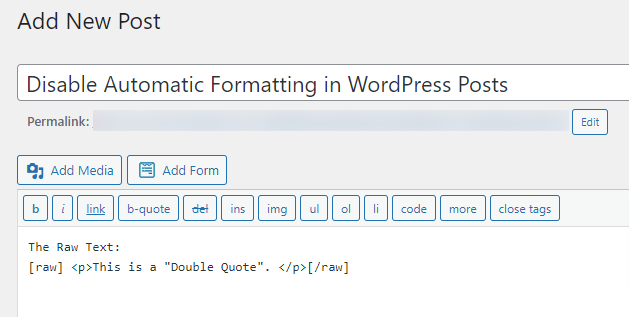
You may now publish, save, and preview your changes to see unformatted text in action.
We hope this article has helped you understand how to prevent automatic formatting in WordPress posts. You might also want to check out our guide on how to highlight text in WordPress or our list of the top WordPress jQuery plugins.
If you enjoyed this article, please subscribe to our YouTube channel for more WordPress video tutorials. You can also reach us on Twitter and Facebook.
Also, Read More Relevant Articles
- How to Automatically Empty Your WordPress Trash
- How to Fix Yoast’s WordPress SEO Sitemap 404 Error
- How to Allow Users to Subscribe to Categories in WordPress
- How to Fix the Syntax Error in WordPress
- How to Fix WordPress Posts Returning 404 Error
- How to Upload an HTML Page to WordPress Without 404 Errors
- How to Fix PHP Missing MySQL Extension Error in WordPress
- How to Add a Custom Database Error Page in WordPress
- Top 9 Reasons WordPress Websites Get Hacked: How to Stay Safe
- How to Create Custom RSS Feed in WordPress
The Last Line
There are various ways to disable automatic formatting in WordPress posts, including using custom code snippets, plugins, and editing theme files. Each method has advantages, ranging from fine-grained control over formatting to simplicity of use without the requirement for coding skills.
By selecting the best strategy for your skill level and site requirements, you can better control how your material looks, improve user experience and keep your website appearing professional. Finally, the decision should be based on your site’s specific requirements and your level of comfort with making technical changes.

