Cart 0

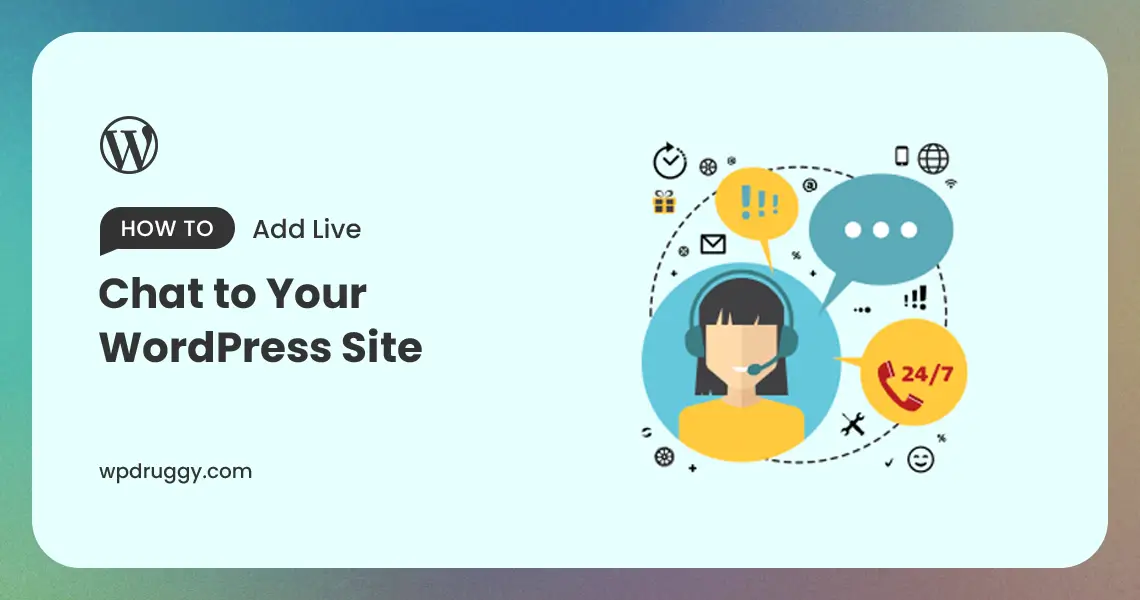

In today’s fast-paced digital world, customer expectations are higher than ever. They seek instant solutions to their queries and crave personalized interactions with businesses. This is where live chat comes to the rescue! Live chat is a powerful tool that allows website visitors to communicate directly with your customer support team in real-time. By integrating live chat into your WordPress site, you can provide exceptional customer service, increase engagement, and boost conversions. In this comprehensive guide, we will walk you through the step-by-step process of adding live chat functionality to your WordPress site, making it easier for you to connect with your audience and elevate your customer support experience to new heights.
Why Live Chat Matters for Your WordPress Site
Before we delve into the technical aspects, let’s understand why live chat is a game-changer for your WordPress site.
1. Instant Customer Support
Live chat allows your customers to get instant responses to their queries. With quick access to your support team, you can address issues promptly, leading to higher customer satisfaction.
2. Personalized Interactions
Live chat fosters personalized interactions with your website visitors. Your support agents can greet customers by their names, tailor responses to their specific needs, and build rapport.
3. Increased Conversions
By resolving customer concerns in real-time, you reduce the likelihood of potential customers abandoning their shopping carts or leaving your site without taking action, leading to increased conversions.
4. Valuable Customer Insights
Live chat transcripts provide valuable insights into your customers’ pain points, preferences, and feedback. This data can inform your business decisions and help improve your products or services.
Step-by-Step Guide to Adding Live Chat to Your WordPress Site
Now that we understand the importance of live chat, let’s walk through the step-by-step process of adding live chat functionality to your WordPress site.
Step 1: Choose a Live Chat Platform
The first step is to choose a reliable live chat platform that integrates seamlessly with WordPress. Some popular live chat solutions include:
1. LiveChat: A user-friendly and feature-rich live chat software that offers customizable chat widgets, agent ratings, and detailed analytics.
2. Intercom: A comprehensive customer messaging platform that offers live chat, chatbots, and email marketing automation.
3. Zendesk Chat (formerly Zopim): A widely used live chat solution with robust features like chat triggers, file sharing, and chat ratings.
4. Olark: A simple and affordable live chat software with useful features like visitor tracking and chat transcripts.
Step 2: Sign Up and Create an Account
Once you’ve selected a live chat platform, sign up for an account on their website. Provide the necessary details and follow the registration process to create your account.
Step 3: Install the Live Chat Plugin
Most live chat platforms offer dedicated WordPress plugins for easy integration. In your WordPress dashboard, go to “Plugins” and click “Add New.” Search for the live chat plugin you chose, install it, and activate it.
Step 4: Configure the Live Chat Settings
After activation, go to the plugin settings page in your WordPress dashboard. Connect your live chat account by entering the API key or authentication details provided by the live chat platform.
Step 5: Customize the Live Chat Widget
Customize the appearance of your live chat widget to match your website’s branding. Adjust the colors, position, and chat window layout to create a cohesive look and feel.
Step 6: Set Up Greetings and Chat Triggers
Take advantage of automated greetings to welcome visitors to your website. You can set up proactive chat triggers based on specific user behaviors, such as time spent on a page or cart abandonment, to engage visitors at critical moments.
Step 7: Train Your Support Team
Before going live, ensure your customer support team is well-versed in using the live chat platform. Provide them with training on responding to customer queries promptly and effectively.
Step 8: Monitor and Analyze Performance
Once your live chat is up and running, monitor its performance and analyze the data. Pay attention to response times, customer satisfaction ratings, and the most common queries. Use this data to optimize your live chat strategy continually.
Step 9: Test Your Live Chat
Before making your live chat available to visitors, it’s a good idea to test it out. You can do this by opening your website in a new browser or an incognito window and starting a chat with yourself. This way, you can ensure that everything is working as expected.
Step 10: Engage with Your Visitors
Once your live chat is up and running, make sure to engage with your visitors promptly and professionally. Be ready to answer questions, provide assistance, and offer a friendly chat experience.
Best Practices for Live Chat on Your WordPress Site
To make the most of live chat, follow these best practices:
1. Be Proactive and Engaging
Don’t wait for customers to initiate the chat. Use proactive greetings to engage visitors and offer assistance when they land on your website.
2. Provide 24/7 Support (If Possible)
If feasible, offer 24/7 live chat support to cater to customers from different time zones and maximize your availability.
3. Keep Response Times Swift
Respond to customer queries promptly. Aim to keep response times under a minute to showcase your commitment to excellent customer service.
4. Personalize Customer Interactions
Address customers by their names and personalize your responses to create a more meaningful and human-like interaction.
5. Use Chatbots for Basic Queries
Employ chatbots to handle basic queries and FAQs, allowing your support team to focus on more complex issues.
6. Gather Customer Feedback
After each chat session, ask for customer feedback to gauge satisfaction levels and identify areas for improvement.
Read this: Building a Restaurant Website with WordPress
Conclusion
Adding live chat to your WordPress site can transform your customer support experience and boost overall engagement and conversions. By following this step-by-step guide and implementing best practices, you can leverage the power of live chat to build stronger relationships with your customers, resolve their concerns in real-time, and create memorable experiences that keep them coming back for more. So, don’t wait any longer—integrate live chat into your WordPress site and watch your customer satisfaction levels soar!