Cart 0


Introduction
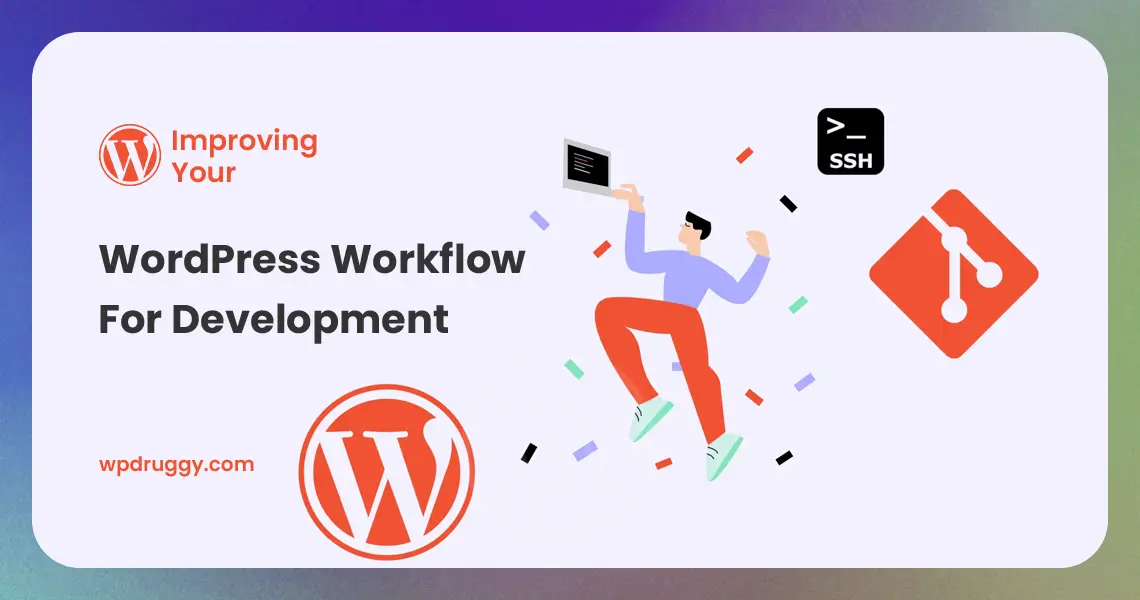
An efficient and streamlined workflow is essential for successful WordPress development. Whether you are a beginner or an experienced developer, optimizing your development process can save time, reduce errors, and enhance productivity. In this comprehensive guide, we will explore various strategies, tools, and best practices to improve your WordPress workflow for development. From setting up a local development environment to utilizing version control and automated testing, this guide will equip you with the knowledge and tools to enhance your development process and deliver exceptional WordPress projects.
Setting Up a Local Development Environment
Working on a local development environment provides several advantages, such as faster testing, easier debugging, and the ability to work offline. Let’s explore the steps to set up a local development environment for WordPress.
1. Install a Local Server
Choose a local server software such as XAMPP, WAMP, or MAMP, depending on your operating system. Install the server software and set up the necessary configurations.
2. Download WordPress
Download the latest version of WordPress from the official website and extract the files to your local server’s web root directory.
3. Create a Database
Set up a database using the local server’s control panel or command-line interface. Note down the database name, username, and password for later use.
4. Configure wp-config.php
Rename the ‘wp-config-sample.php’ file to ‘wp-config.php’ and edit it to include the database details you created earlier.
5. Access the Site
Open a web browser and navigate to ‘localhost’ or ‘127.0.0.1’ to access your locally installed WordPress site.
Utilizing Version Control
Version control is essential for managing code changes, collaborating with team members, and keeping track of project history. Git is a popular version control system used by many developers. Let’s explore how to utilize version control for your WordPress projects.
1. Install Git
Install Git on your local machine. You can download the installer for your operating system from the official Git website.
2. Initialize a Git Repository
Inside your WordPress project folder, open a terminal or command prompt and run the command ‘git init’ to initialize a new Git repository.
3. Create a .gitignore File
Create a .gitignore file to specify which files and folders should be excluded from version control, such as cache files, logs, and temporary files.
4. Add and Commit Changes
Use the ‘git add’ command to stage the changes you want to include in the next commit. Then, use ‘git commit’ to create a new commit with a descriptive message.
5. Collaborate with Remote Repositories
Set up remote repositories on platforms like GitHub or Bitbucket to collaborate with team members and back up your project.
Automating Tasks with Build Tools
Build tools automate repetitive tasks in your WordPress development workflow, such as minifying CSS and JavaScript, compiling Sass files, and optimizing images. Let’s explore some popular build tools and how to use them.
1. Gulp
Gulp is a task runner that uses Node.js to automate tasks in your development workflow. To use Gulp, follow these steps:
- Install Node.js:< Download and install Node.js from the official website.
- Install Gulp: Open a terminal or command prompt and run ‘npm install -g gulp’ to install Gulp globally.
- Create a ‘gulpfile.js’: Create a ‘gulpfile.js’ in your WordPress theme or plugin folder, and define the tasks you want to automate.
- Install Plugins: Install Gulp plugins, such as ‘gulp-sass’ for compiling Sass files and ‘gulp-uglify’ for minifying JavaScript.
- Run Gulp: Use the ‘gulp’ command in the terminal to run the tasks defined in your ‘gulpfile.js’.
2. Webpack
Webpack is a powerful module bundler that allows you to manage and optimize your assets. To use Webpack, follow these steps:
- Install Node.js: If you haven’t already, install Node.js from the official website.
- Create a ‘package.json’: Run ‘npm init’ in your WordPress theme or plugin folder to create a ‘package.json‘ file.
- Install Webpack: Run ‘npm install webpack webpack-cli –save-dev’ to install Webpack and the CLI tools as development dependencies.
- Create a Webpack Configuration: Create a ‘webpack.config.js’ file and configure your entry points, output paths, and loaders.
- Run Webpack: Use the ‘webpack’ command in the terminal to run Webpack and bundle your assets.
Automated Testing for WordPress Projects
Automated testing is crucial for ensuring the stability and reliability of your WordPress projects. Let’s explore different types of automated testing and how to implement them.
1. Unit Testing
Unit testing focuses on testing individual units or components of your code in isolation. For WordPress projects, you can use the PHPUnit testing framework to write unit tests for your plugins or themes.
- Install PHPUnit: Install PHPUnit using Composer or download it manually.
- Write Tests: Create test classes and methods to test the functionality of your code.
- Run Tests: Use the ‘phpunit’ command in the terminal to run your PHPUnit tests.
2. Integration Testing
Integration testing involves testing how different components of your WordPress project interact with each other. For example, you can test how your plugin interacts with the WordPress database or other plugins.
- Use WP-CLI: WP-CLI is a command-line tool for managing WordPress installations. Use it to set up a testing environment and automate the execution of your integration tests.
- Write Integration Tests: Create test scripts that simulate the interaction between different components of your project.
- Run Tests: Use WP-CLI to run your integration tests and analyze the results.
Continuous Integration and Continuous Deployment
Continuous Integration (CI) and Continuous Deployment (CD) are development practices that involve automating the testing and deployment of your code. Let’s explore how to implement CI/CD for your WordPress projects.
1. Choose a CI/CD Platform
Select a CI/CD platform that supports WordPress projects. Popular choices include Jenkins, Travis CI, and CircleCI.
2. Configure CI/CD Pipelines
Set up CI/CD pipelines that include automated testing, code analysis, and deployment steps.
3. Monitor and Improve
Regularly monitor your CI/CD pipelines and analyze the results of automated tests. Use this data to identify areas for improvement in your development process.
Code Review and Collaboration
Code reviews are essential for maintaining code quality and ensuring that your WordPress project adheres to best practices. Let’s explore how to conduct effective code reviews and collaborate with team members.
1. Use Version Control
Utilize version control systems to manage code changes and facilitate code reviews.
2. Define Code Review Guidelines
Establish clear code review guidelines that cover coding standards, best practices, and project-specific requirements.
3. Use Code Review Tools
Use code review tools, such as GitHub’s pull request feature, to facilitate code reviews and streamline collaboration.
4. Provide Constructive Feedback
When conducting code reviews, provide constructive feedback to help improve the quality of the code and promote continuous learning.
5. Foster a Collaborative Environment
Encourage open communication and collaboration among team members to foster a positive and productive development environment.
Read this: How to Choose the Right WordPress Framework
Conclusion
Improving your WordPress workflow for development is a continuous process that involves implementing best practices, using the right tools, and staying updated with the latest trends in web development. From setting up a local development environment to implementing automated testing and code reviews, each step contributes to the overall efficiency and quality of your WordPress projects. Embrace these strategies and practices to elevate your WordPress development skills and deliver outstanding websites that meet the highest standards of performance, security, and user experience. With an optimized workflow, you can unlock your full potential as a WordPress developer and create remarkable digital experiences for your clients and users.