
Cart 0



Do you want to delete the default author profile fields in WordPress?
If you are running a multi-author WordPress blog, then you may want to display all of your author profiles in the same manner for consistency. Removing the default author profile fields in WordPress can give you greater control over what info your authors can use in their name or biography.
In this article, we will teach you how to delete default author profile fields in WordPress.
When Should You Remove Default Author Profile Fields?
When you create a new user on your WordPress website, you will need to fill in the same basic fields.
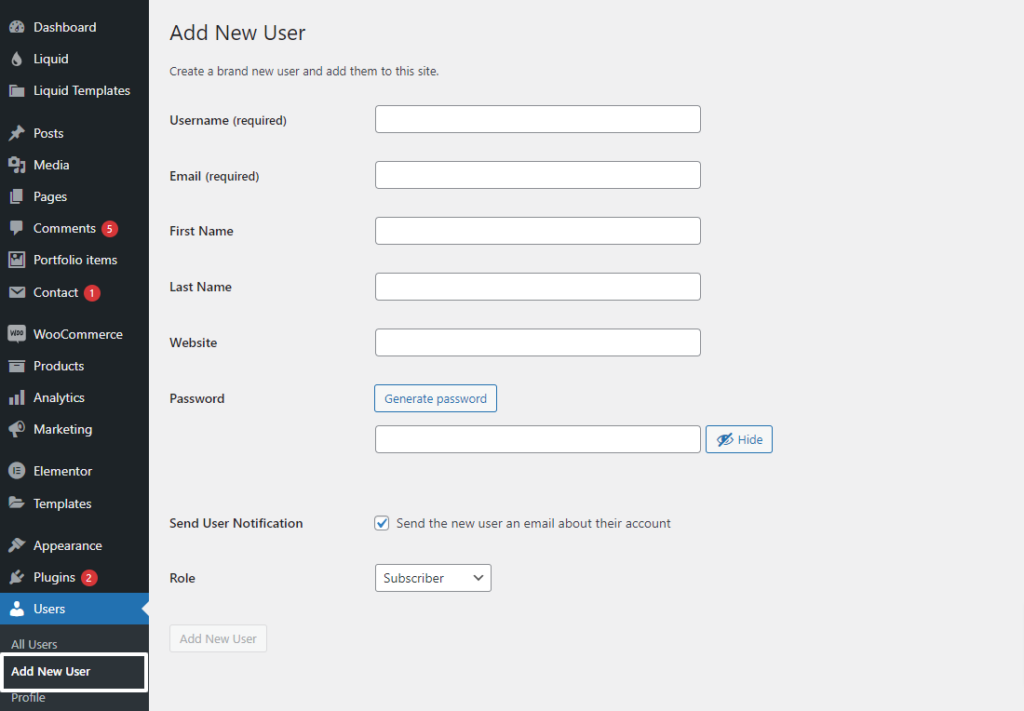
These usually include First and Last Name, Display name publicly as, Contact Info (email and website), Biographical Info, and Profile Picture.
These fields remain the same no matter whether you are creating a blog, WooCommerce store, membership site, or some other sort of WordPress website.
Some non-admin WordPress user roles, such as Author, can modify these fields. This functionality can be handy if they need to modify any information on their public author profile.
However, in certain situations, you may need to delete these default fields from your Author users. Deleting not needed fields contributes to a uniform brand identity across all content, especially when pieces are published under the company’s name rather than individual authors’ names.
Simplifying the Author profile editing interface also makes it quicker and easier to add new authors to your site by focusing only on the most important information.
That being said, let’s look at how to delete the default author profile fields in WordPress.
How to Remove Default Author Profile Fields With WPCode
To remove the default author profile information, we have written some easy code snippets that you may include in your functions.php file. Normally, you will need to manually change your theme file to include custom code snippets. However, this is not the safest method, as it can result in accidental errors.
As a result, we shall use WPCode. This code snippet plugin allows you to easily enter code into WordPress without having to work directly with your theme files. As a result, you’re less likely to crash your website. This tutorial will use the free version of WPCode, but you may upgrade to the Pro version for more sophisticated capabilities such as testing mode and conditional logic.
The first step is to install the WordPress plugin from your dashboard. Once the plugin is activated, navigate to Code Snippets » + Add Snippet.
Then choose ‘Add Your Custom Code (New Snippet)‘ and click the ‘Use Snippet‘ button.

Now give your new snippet a name. It may be as simple as ‘Removing Edit User fields for Author.’
Then, make sure to set the Code Type to ‘PHP Snippet.’
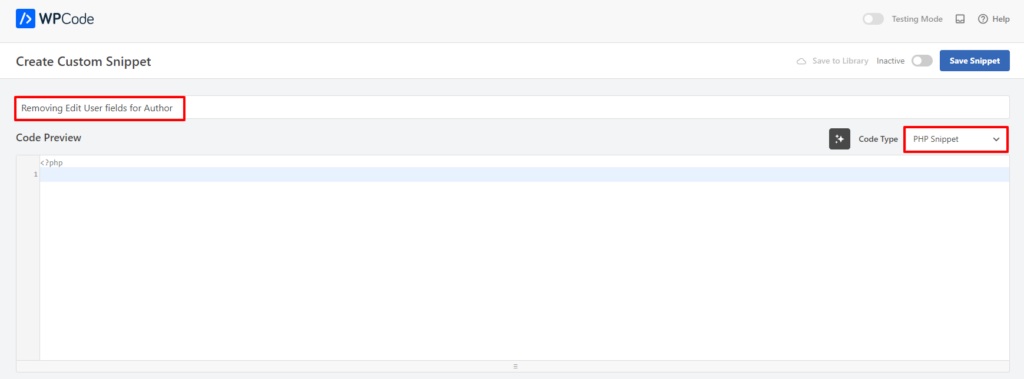
Copy and paste the following code snippet into the Code Preview box:
add_action('admin_footer-profile.php', 'remove_profile_fields');
function remove_profile_fields() {
    if(is_admin() && current_user_can('author')) { // Check if the current user has the 'Author' role
        ?>
         <script type="text/javascript">
            jQuery(document).ready(function($) {
                // Remove the sections titled "Name", "Contact Info", and "About Yourself"
                $('h2:contains("Name"), h2:contains("Contact Info"), h2:contains("About Yourself")').each(function() {
                    // Remove the next form-table and the h2 itself
                    $(this).next('.form-table').remove();
                    $(this).remove();
                });
            });
        </script>
        <?php
    }
}
The admin_footer-profile.php action hook is used to insert custom JavaScript into the admin footer of the profile editing page. This makes sure the script executes after the page has fully loaded, allowing it to target WordPress’ dynamically created elements.
The code first verifies if the current user has the “Author” role by calling the current_user_can('author') method. This is a safety measure to ensure that only people with the specified role can delete these portions.
Next
If the user is an author, the code adds JavaScript to the page. This JavaScript used jQuery to locate <h2> elements with the words “Name“, “Contact Info“, and “About Yourself.”
Then it removes the following. The form-table element follows each <h2> and contains the form fields for that section while removing the <h2> components themselves.
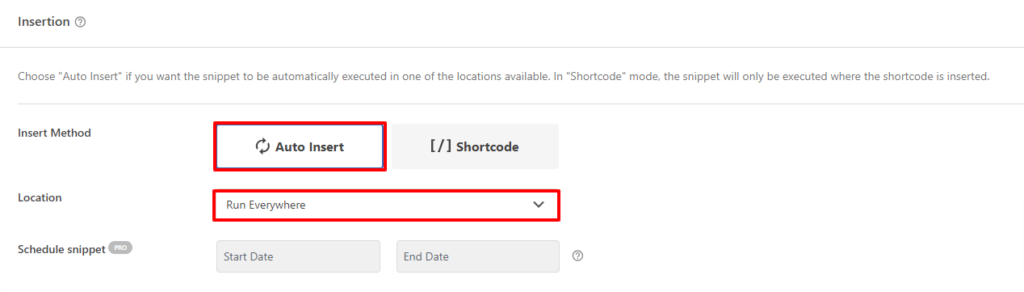
Once you’ve pasted the code, make sure the Insert Method is ‘Auto Insert‘ and the Location is ‘Run Everywhere.’ Then, simply switch the Inactive toggle at the top to Active and click the ‘Save Snippet‘ button.
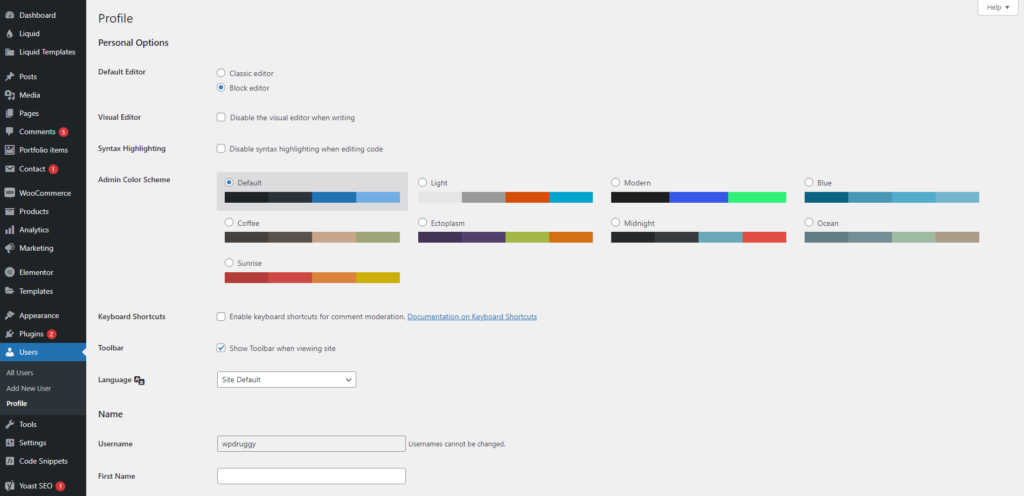
That is all of the code you need to add. To see if it works, log in to your WordPress admin as an Author and navigate to Profile.
If you only see the Personal Options, Account Management, and Application Passwords settings, the code is valid.
Also, Read More Relevant Articles
- How to Disable Automatic Formatting in WordPress Posts
- How to Automatically Empty Your WordPress Trash
- How to Fix Yoast’s WordPress SEO Sitemap 404 Error
- How to Allow Users to Subscribe to Categories in WordPress
- How to Fix the Syntax Error in WordPress
- How to Fix WordPress Posts Returning 404 Error
- How to Upload an HTML Page to WordPress Without 404 Errors
- How to Fix PHP Missing MySQL Extension Error in WordPress
- How to Add a Custom Database Error Page in WordPress
- Top 9 Reasons WordPress Websites Get Hacked: How to Stay Safe
The Final Thought
Removing default author profile fields in WordPress may help to streamline your website’s backend and provide a more personalized experience for your users and authors. Using code snippets or plugins, you can successfully hide or edit these fields to better fit your website’s needs.
Whether you are a developer searching for a more efficient solution or a website owner who wants to keep control of user data, this technique provides flexibility and improves the overall user experience on your WordPress site.

