
Cart 0



Do you want Google to recrawl specific URLs? If your website is fresh, Google will need some time to crawl and index it. When you add new content or edit existing content, Google will need to crawl those sites again. In this article, we’ll show you how to request that Google recrawl the URLs of your WordPress website.
When Do You Need to Ask Google to Recrawl URLs?
When you add new pages and articles to your WordPress website, Google must crawl them so that they may be indexed and presented in search results. This also applies when you edit existing content.
You will need to manually request that Google recrawl your URLs. These links will be added to a Google indexing queue, and a search bot will begin crawling them in due course.
Some common reasons for asking Google to recrawl URLs include:
- When you create a new post or page
- When making changes to an existing post or page
- When you cannot find a page on Google’s search engine results pages
You may automate the first two actions above using XML sitemaps. Google is good at re-indexing websites because it is their business. However, we’ve noticed that certain pages are removed from Google for no apparent reason. Sometimes simply requesting Google to recrawl the URL will result in the page appearing right away.
If you haven’t already, get your site indexed on Google so that Google may immediately begin indexing your URLs. After that, you should request that Google re-crawl links to your new and modified pages. That being stated, let’s look at how to ask Google to recrawl your WordPress site’s URLs and display them in search results.
Step 1: Using the URL Inspection Tool to Recrawl URLs
Google Search Console (previously Google Webmaster Tools) has a URL inspection tool that can help you find issues with your URLs and suggest remedies for getting your links indexed in Google.
It can also help you troubleshoot typical WordPress errors for particular URLs and other URL indexing issues. To check the URL index status of your property or website, first, browse the Google Search Console website and then choose it.
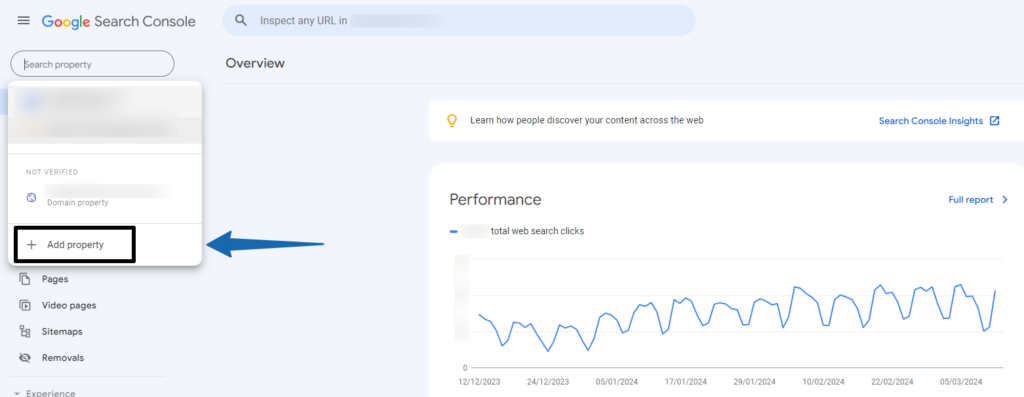
Remember: If you don’t already have a website listed in Google Search Console, you must add it as a new property before using the URL inspection tool.
After selecting the property, go to ‘URL Inspection’ on the left menu. Then, enter your URL into the search field you want to inspect.
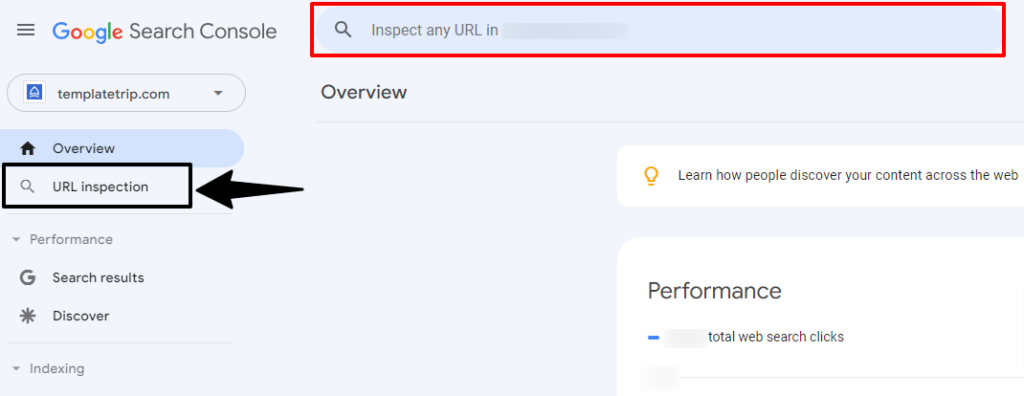
It will collect data about your URL and present it on the Google Search Console dashboard.
If the URL is already in Google, you will receive a success message containing information about your link. You may expand on the findings to find out if any issues need to be addressed. If there are none, you will notice Google’s submission request to recrawl and index your URL.
If the link is not on Google, it will display the issues and provide a method to get your URL indexed on Google. You can resolve the errors and check the URL again until you receive a success message. Following that, a request is sent to recrawl your URL.
Step 2: Submitting an XML Sitemap to Recrawl URLs
If you are still sure whether the URLs are in Google’s index, simply upload an updated XML sitemap containing your new URLs to Google Search Console. Sitemaps are the simplest way to have your new URLs crawled by Google. For this stage, we recommend using the All in One SEO plugin, which offers flexible options for correctly configuring your XML sitemaps in WordPress.
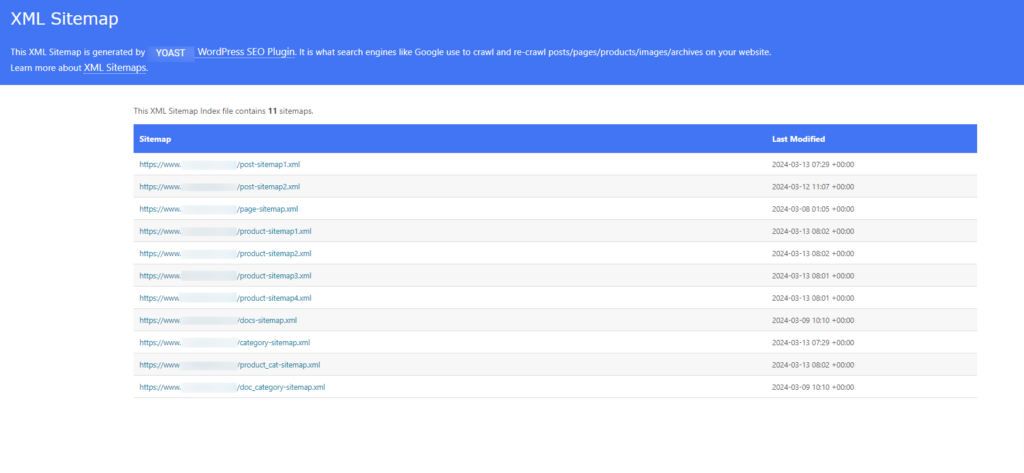
YOAST SEO generates an XML sitemap by default as soon as the plugin is installed. To alter your sitemap settings, navigate to YOAST SEO » Sitemaps in the WordPress admin area. You’ll notice that the XML sitemaps setting is activated by default.
To access your sitemap, click the ‘Open Sitemap’ button. If your new links are displayed in this sitemap file, you can publish them to Google Search Console.
To submit the XML sitemaps, go to the Google Search Console website and select ‘Sitemaps’ from the left menu.
Simply input your XML sitemap link and click the ‘Submit’ button.
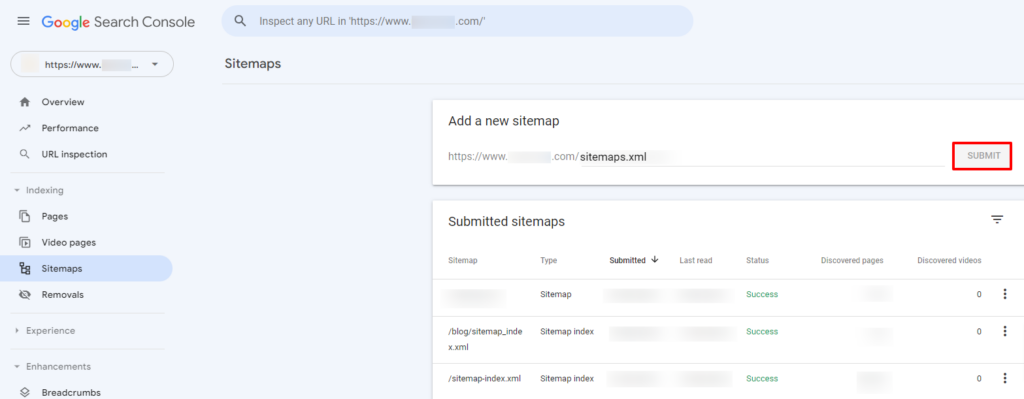
This updated sitemap allows Google bots to quickly crawl your new URLs and display them in search results.
Remember: Note that you only need to upload the sitemap once. Google crawls your sitemap regularly and adds updated posts as soon as they are added.
Also Read More Articles
- How to Easily Add JavaScript in WordPress Pages or Posts – 2 Methods
- How to Use User-Generated Content in WordPress to Grow Your Business
- How to Disable Theme and Plugin Editors from the WordPress Admin Panel
- How to Fix ‘Failed To Load Resource’ Error in WordPress
- How To Fix “The Link You Followed Has Expired” Error in WordPress
- How to Fix WordPress RSS Feed Errors (Step-by-Step Guide)
- How to Fix Post-Processing of Image Failed Error in WordPress
- How to Block WordPress Referrer Spam in Google Analytics
- How to Fix WordPress SEO Crawl Budget Problem
- How To Easily Disable the Default WordPress Sitemap
The Final Line
In conclusion, effectively requesting Google to recrawl URLs of your WordPress site is essential for ensuring that your content remains relevant and discoverable. By following the outlined steps and using Google Search Console, you can use Google’s crawlers to revisit and index your updated pages efficiently, thus optimizing your site’s visibility and accessibility on the web.

